



Per utilizzare le nostre app e configurazioni, prima devi aprire un nuovo account su ExpressVPN.
This tutorial will show you how to set up MediaStreamer on your Nintendo Switch.
MediaStreamer is a DNS service designed to improve your streaming experience. If your device doesn’t natively support VPN, MediaStreamer is a great alternative for streaming.
To use MediaStreamer smoothly, you must register your IP address on the ExpressVPN website. This allows ExpressVPN to recognize your IP address and grant your device access to MediaStreamer.
Note: MediaStreamer is not a VPN and does not offer the privacy and security benefits of a VPN. You cannot change locations with MediaStreamer.
Some streaming services will only work in certain eShop regions. You may have to change your eShop location for these streaming services to work.
Jump to…
1. Register your IP address on the ExpressVPN website
2. Get your MediaStreamer IP addresses
3. Configure the DNS servers on your Nintendo Switch
1. Register your IP address on the ExpressVPN website
- Log into the ExpressVPN+ portal. If prompted, enter your email and click Send Code.
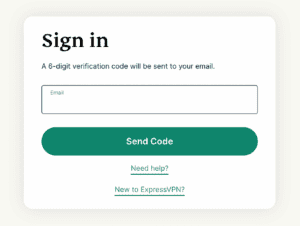

- Enter the verification code sent to your email.
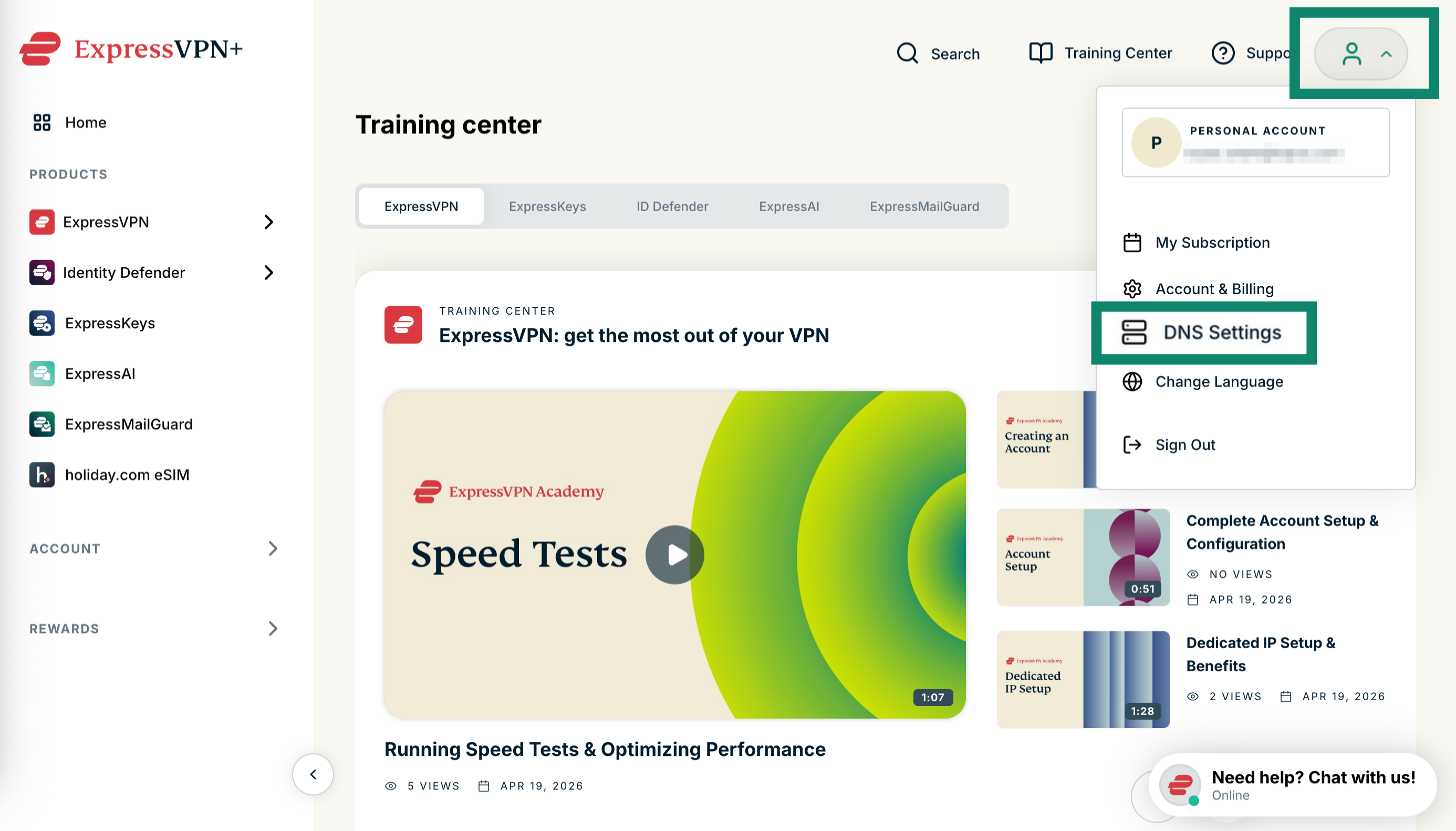
- Select your profile picture and click DNS Settings.


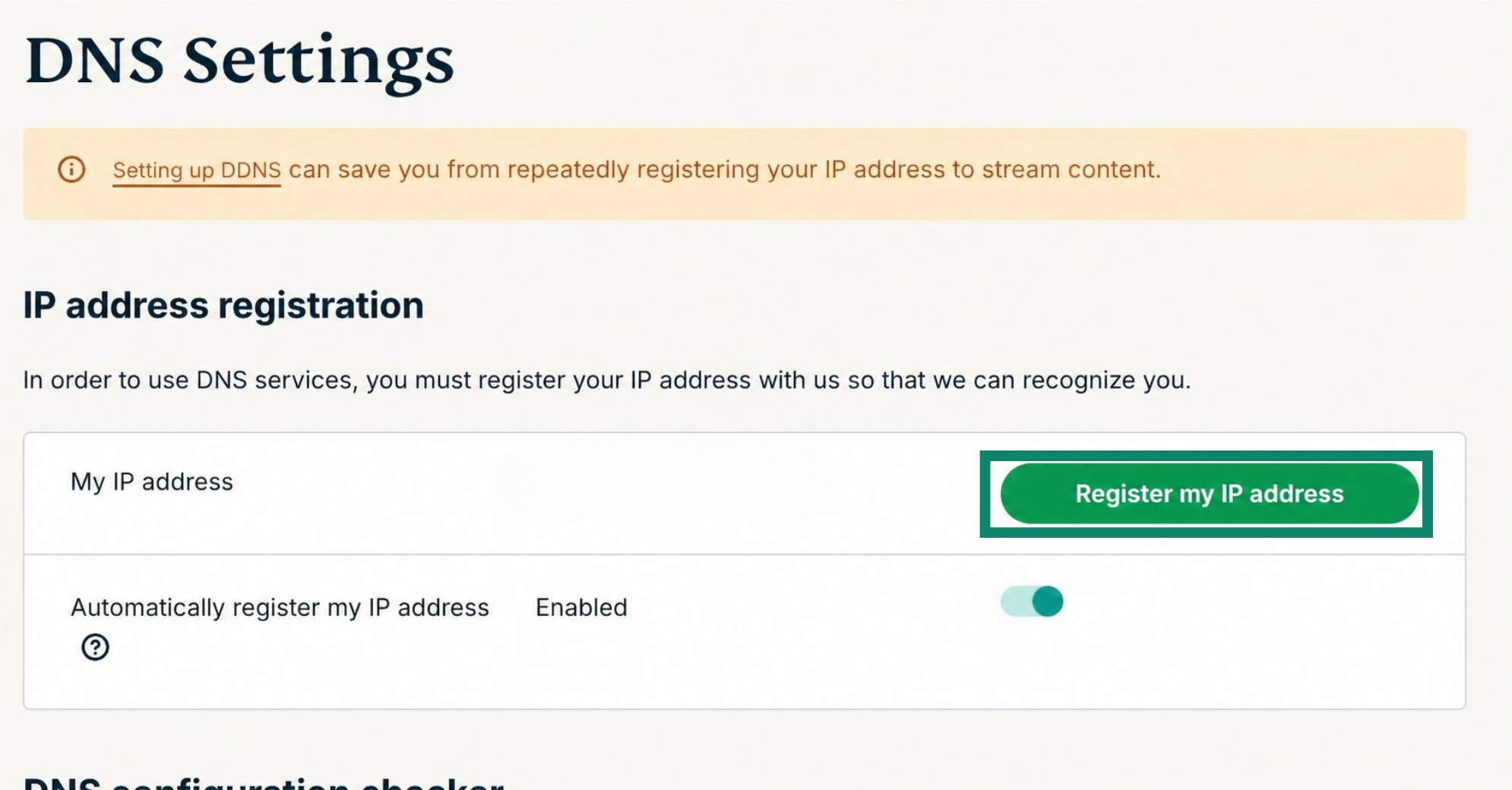
- Under IP address registration, click Register my IP address. If it already reads “registered” next to your IP address, there is no need to select this option again.
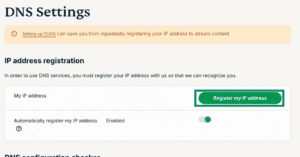

- Toggle Automatically register my IP address on. This is recommended as it automatically tracks changes to your IP address.
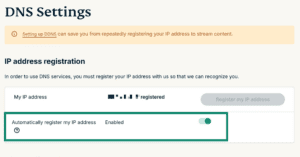
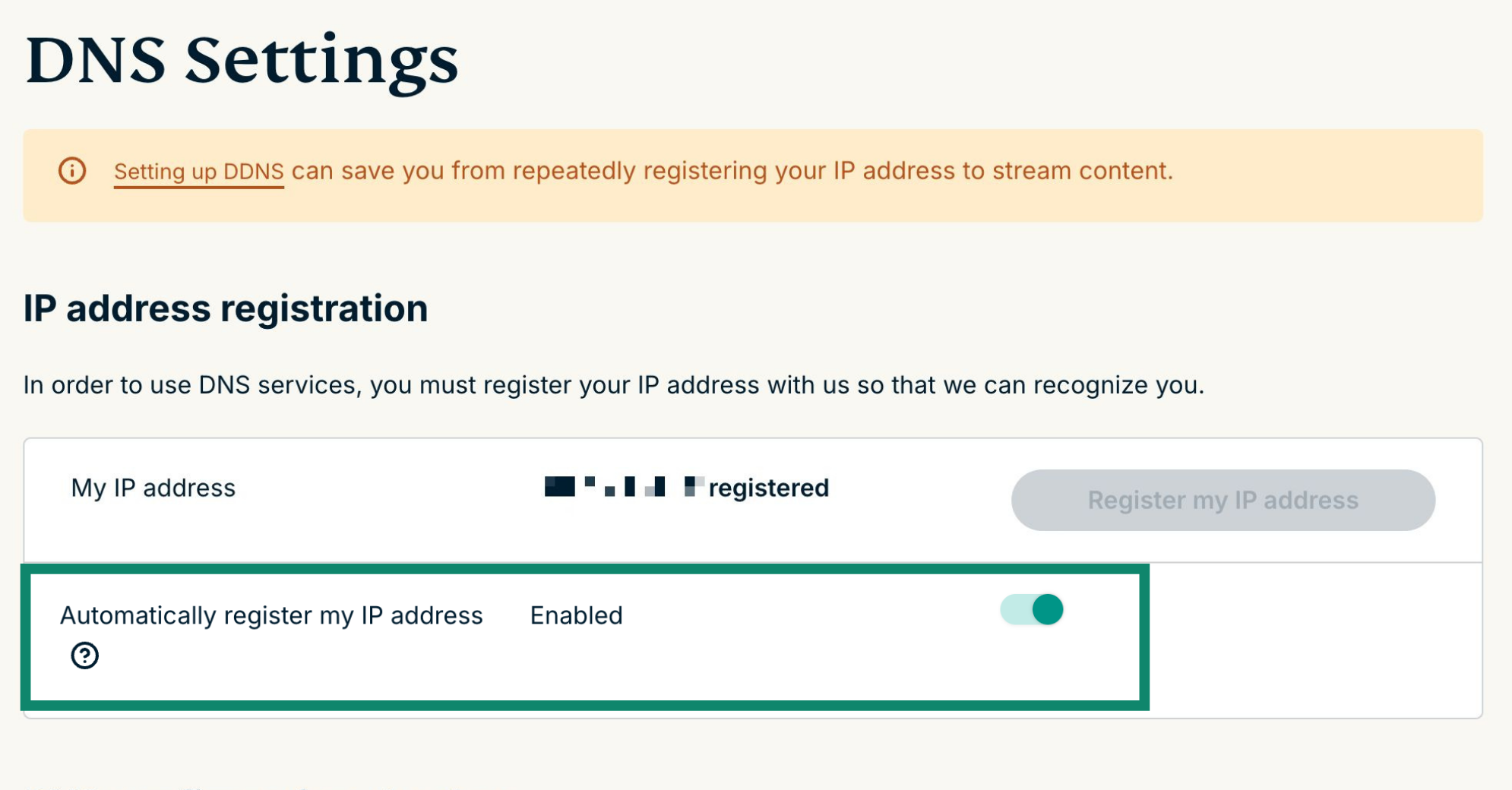
Automatically register your IP address enabled. To keep your IP address updated, you should periodically sign in to your account on the ExpressVPN website, or use the ExpressVPN app (on any device) while connected to the same network as your Nintendo Switch. These actions grant the devices on your network continued access to MediaStreamer.
Need help? Contact the ExpressVPN Support Team for immediate assistance.
2. Get your MediaStreamer server IP address
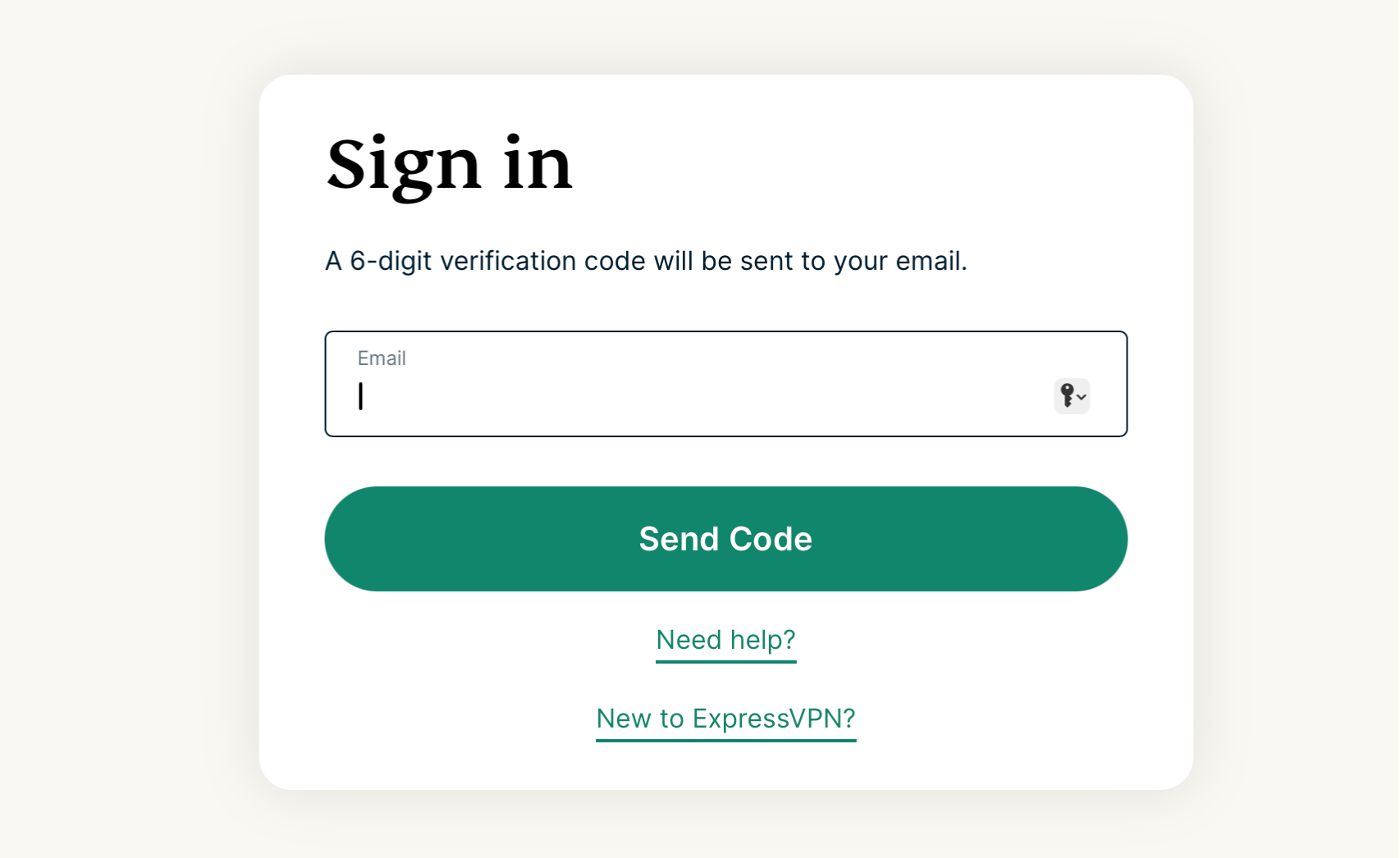
- Go to the ExpressVPN Setup page. If prompted, enter your email and click Send Code.
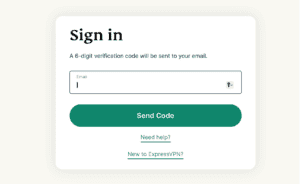

- Enter the verification code sent to your email.
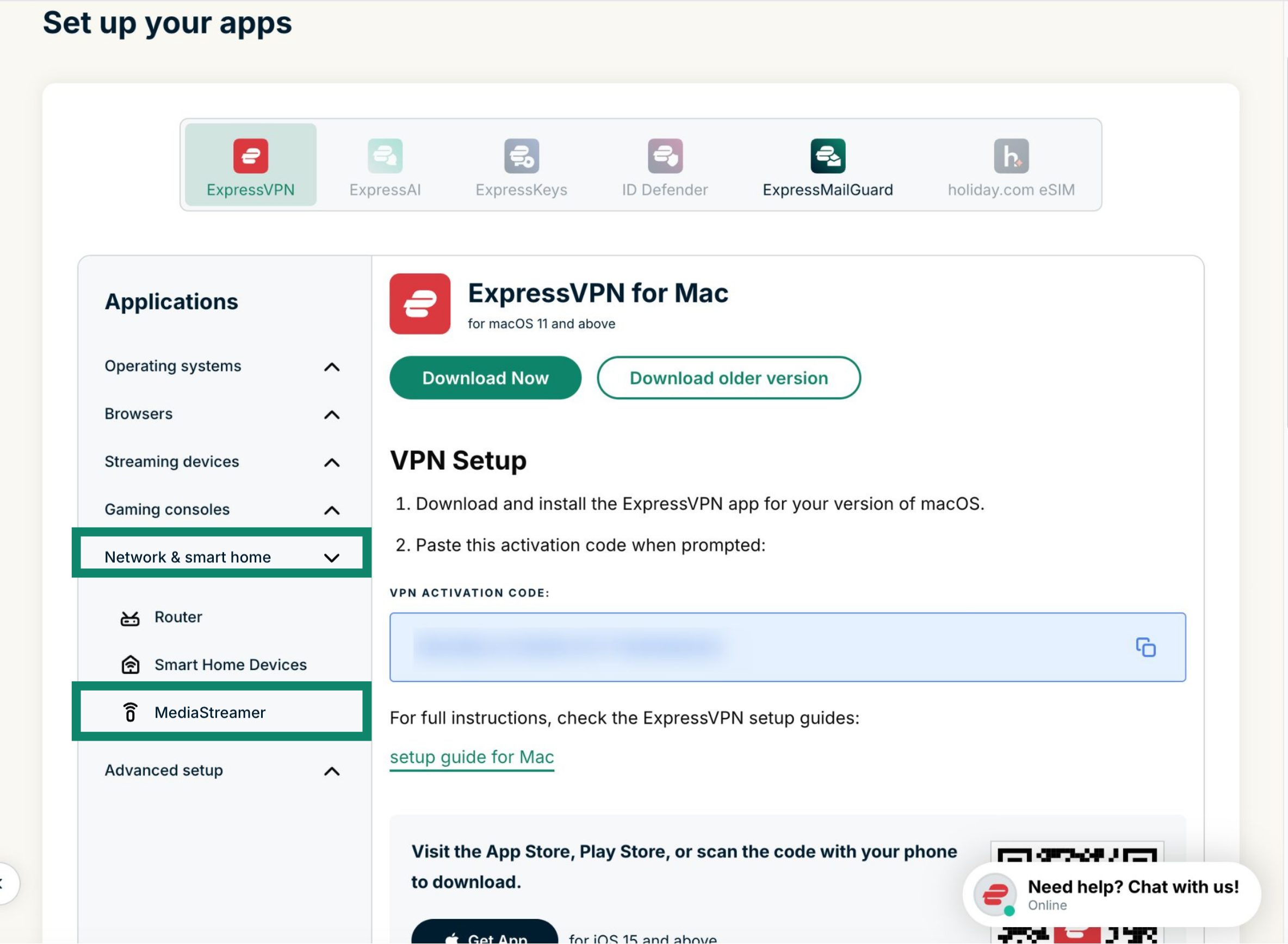
- Under Applications, select Network & smart home to open the dropdown menu. From there, click MediaStreamer.
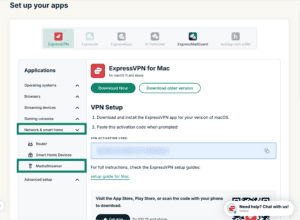

- You will find your DNS server IP addresses on the right side, under MediaStreamer IP#1 and MediaStreamer IP #2.


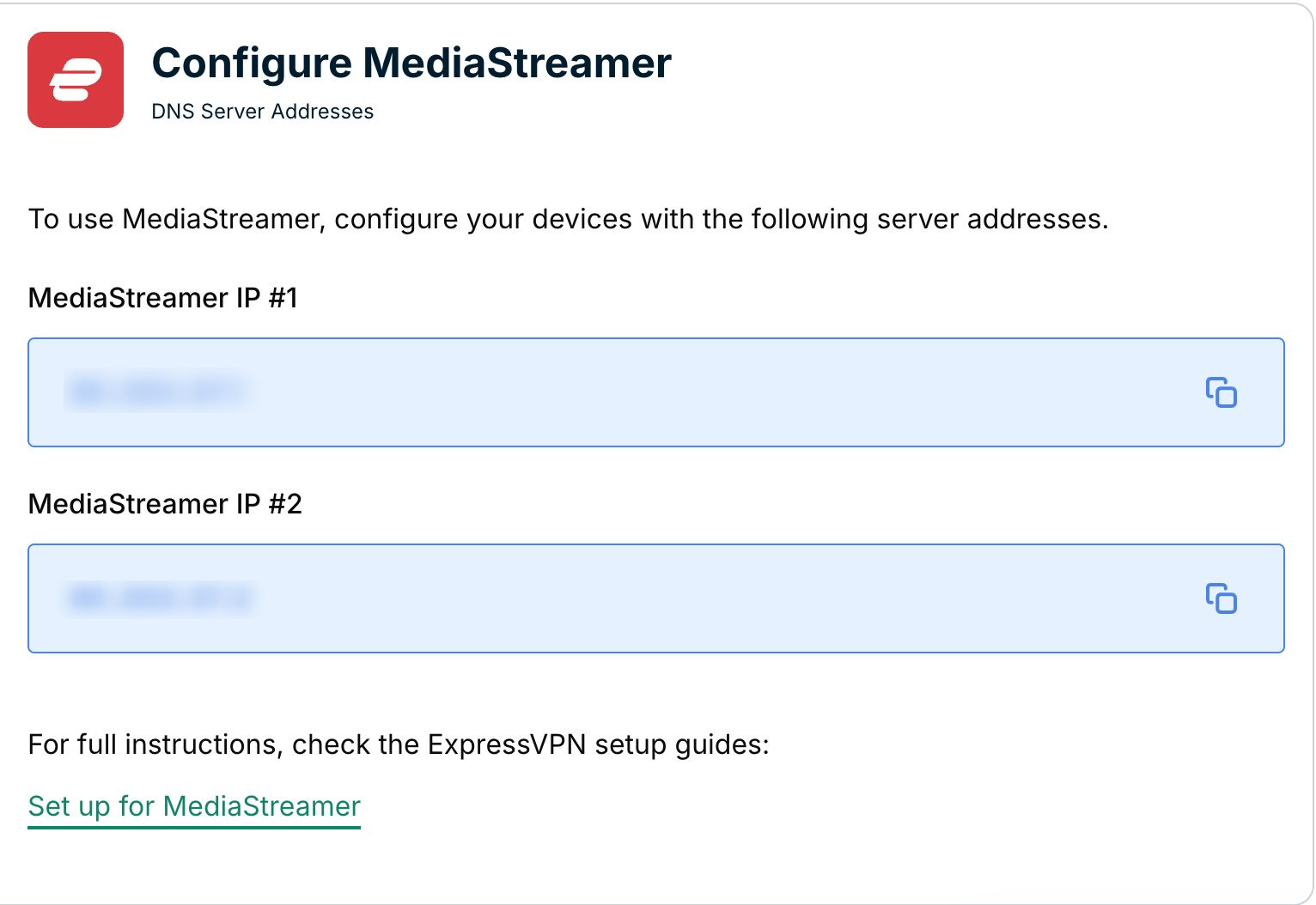
Keep this browser window open. You will need this information for the setup later.
Need help? Contact the ExpressVPN Support Team for immediate assistance.
3. Configure the DNS servers on your Nintendo Switch
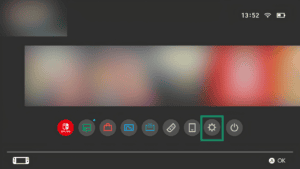
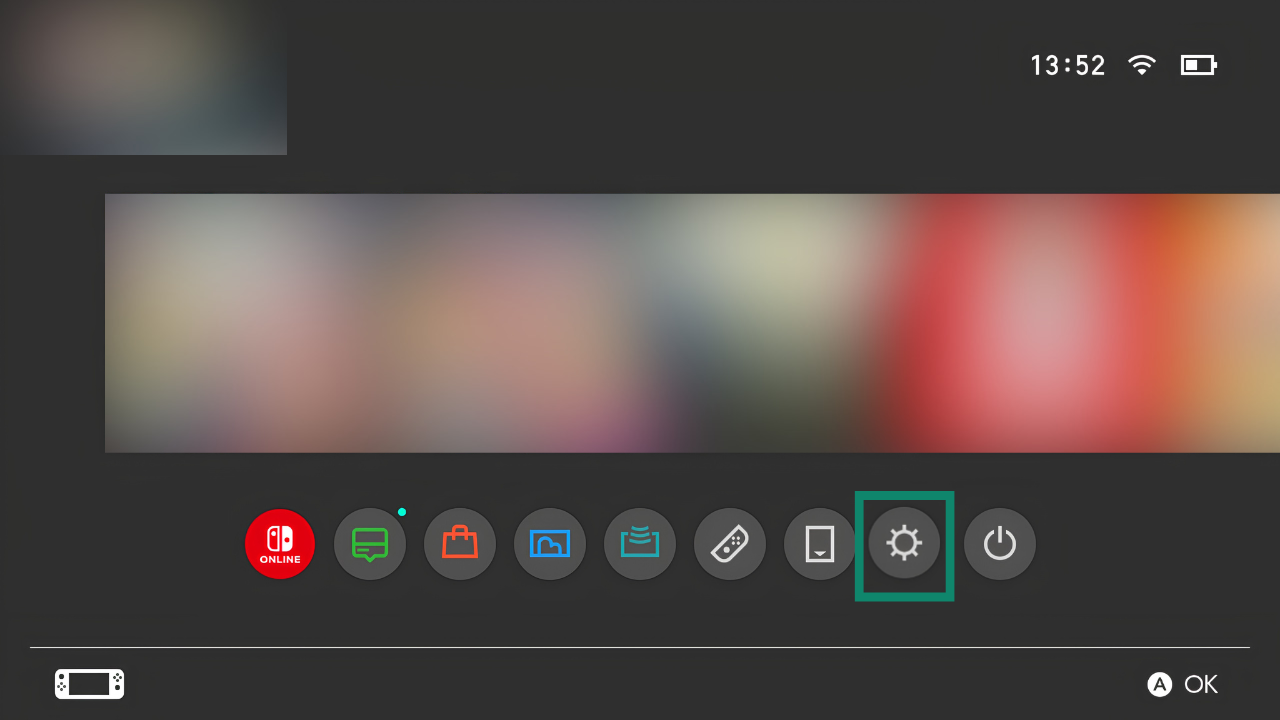
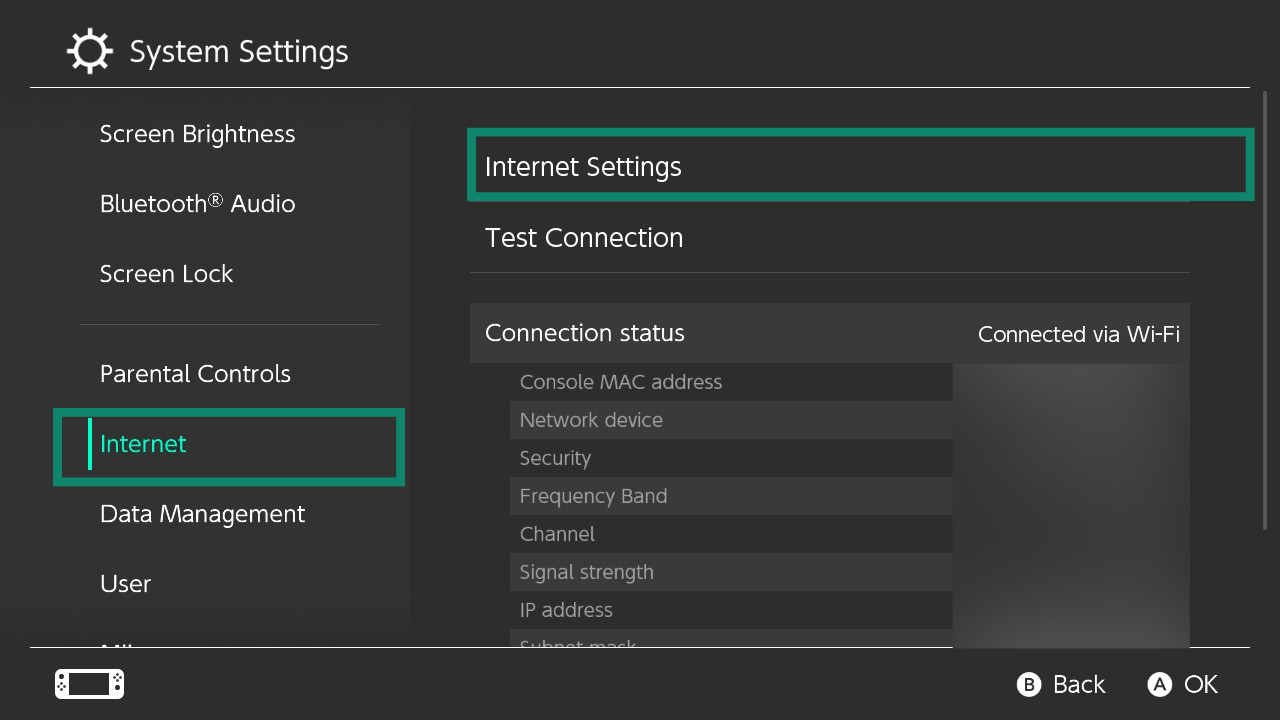
- On your Switch, select System Settings.

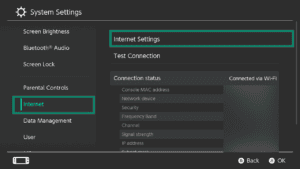
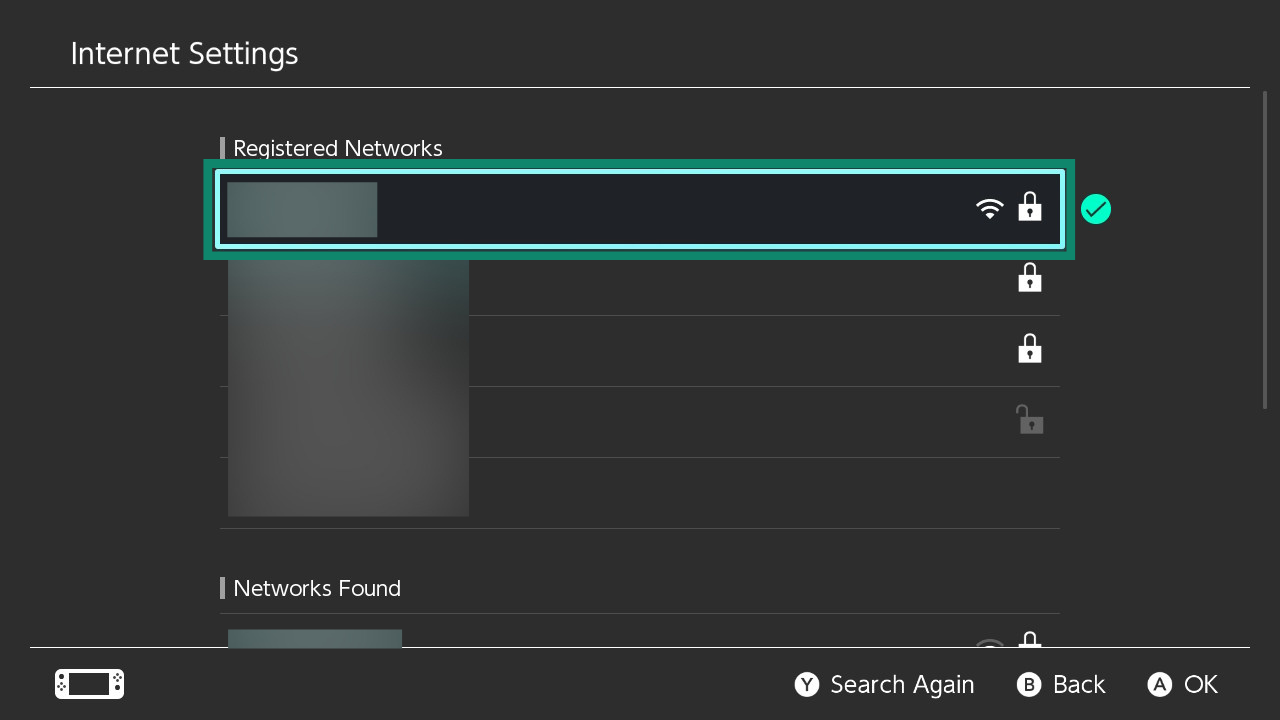
- Select Internet > Internet Settings.
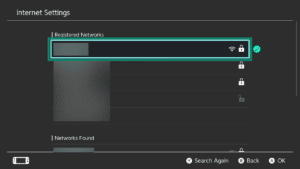
- Select the network you are currently connected to.
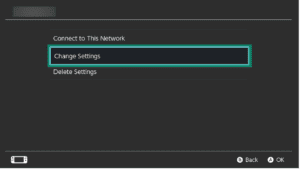
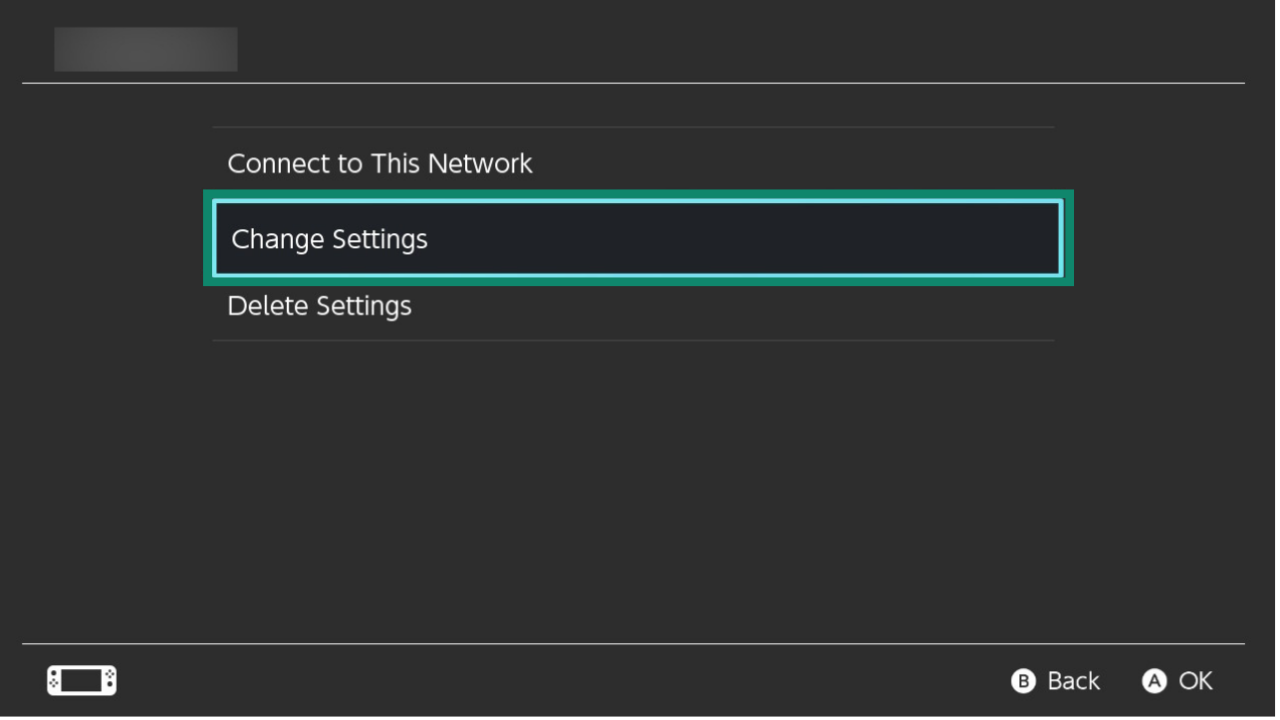
- Select Change Settings.
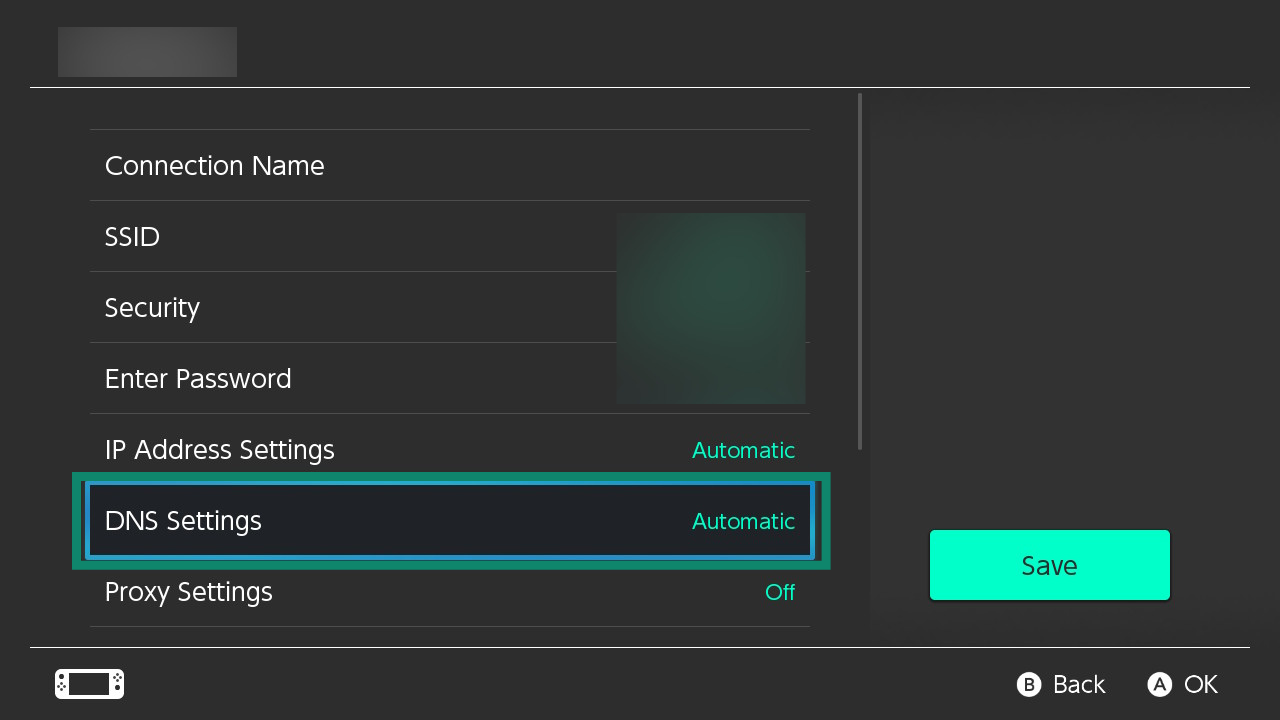
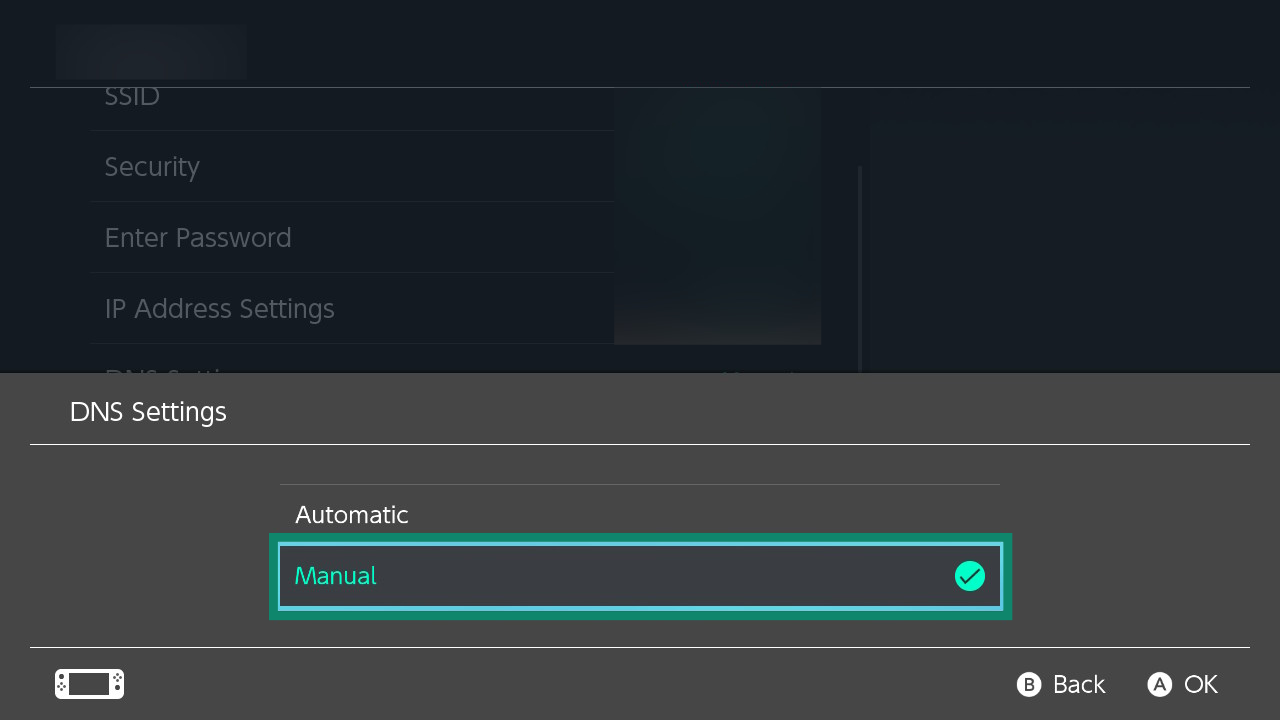
- Select DNS Settings.
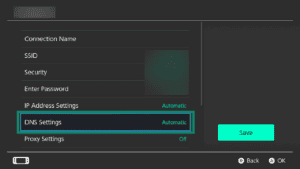
- In DNS Settings, select Manual.
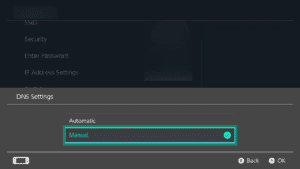
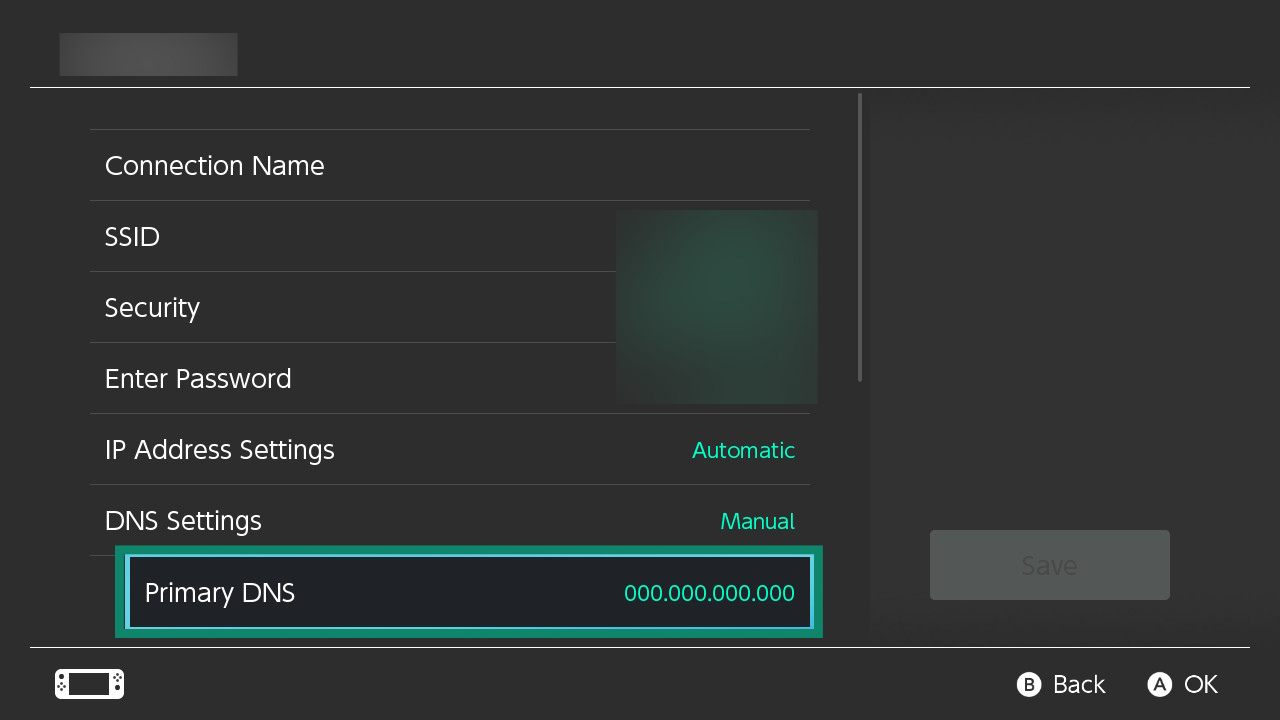
- Select Primary DNS.
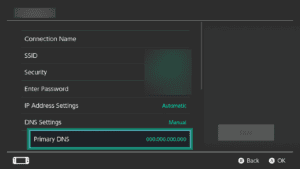
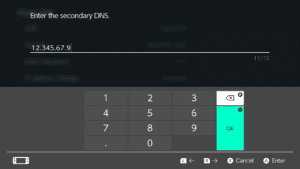
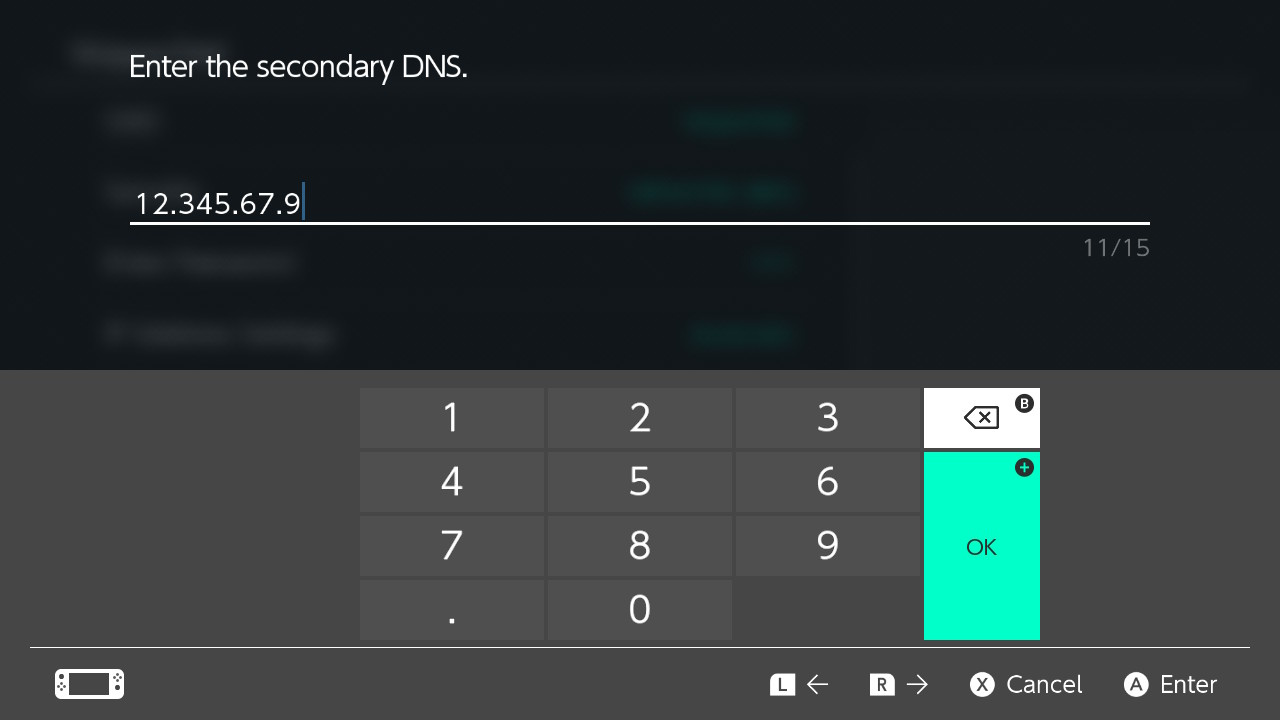
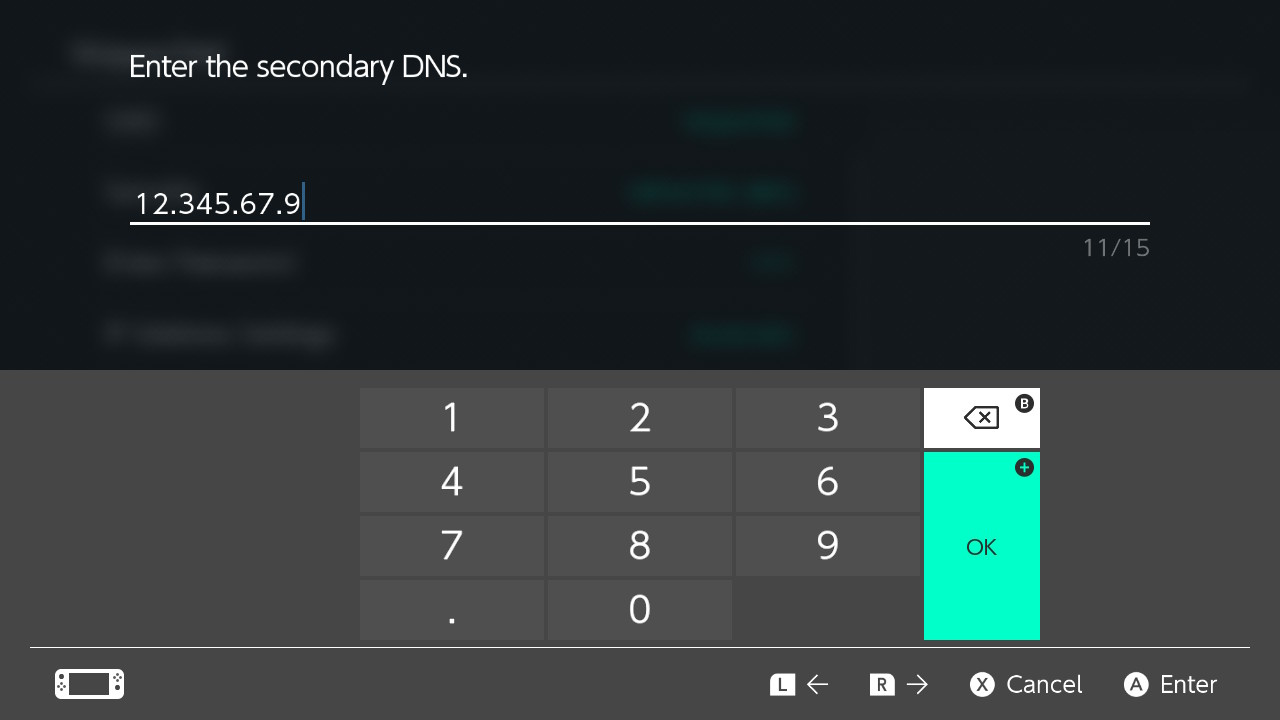
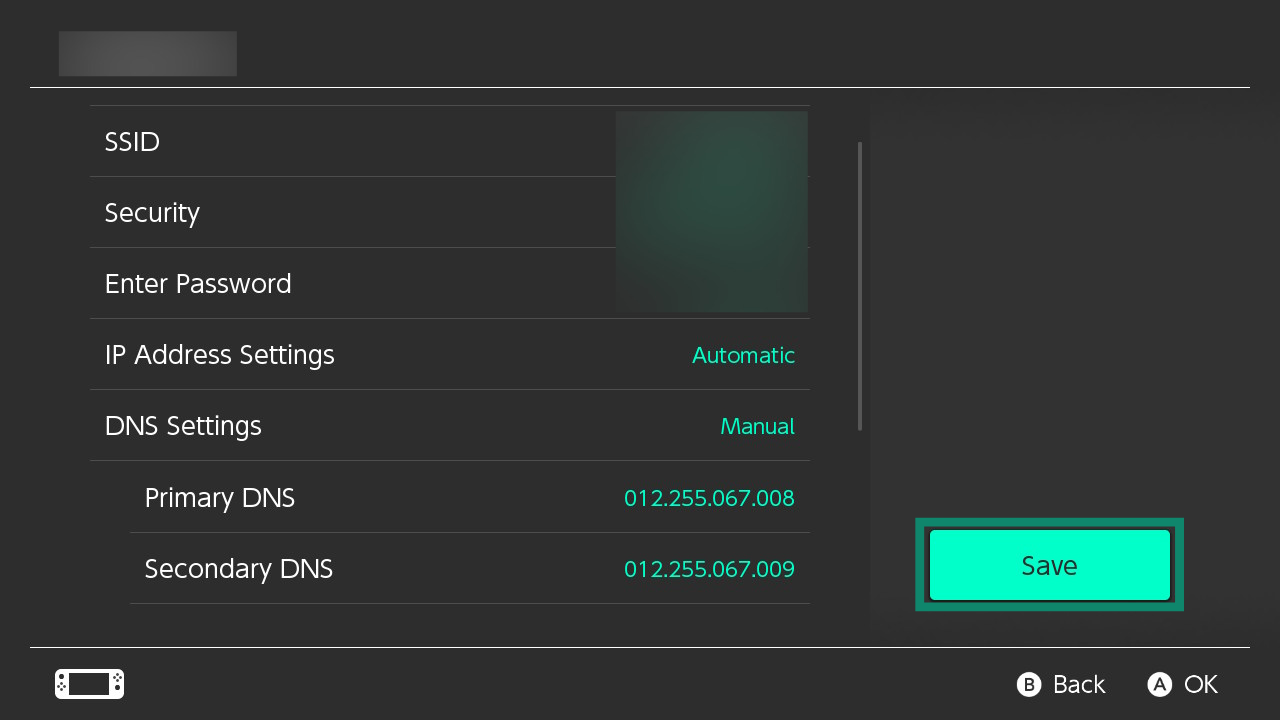
- Enter the first MediaStreamer IP address you found earlier. Each number you enter may be reformatted as a three-digit number. Select OK.
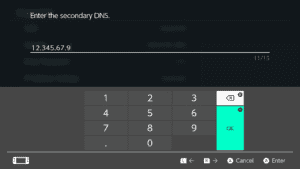
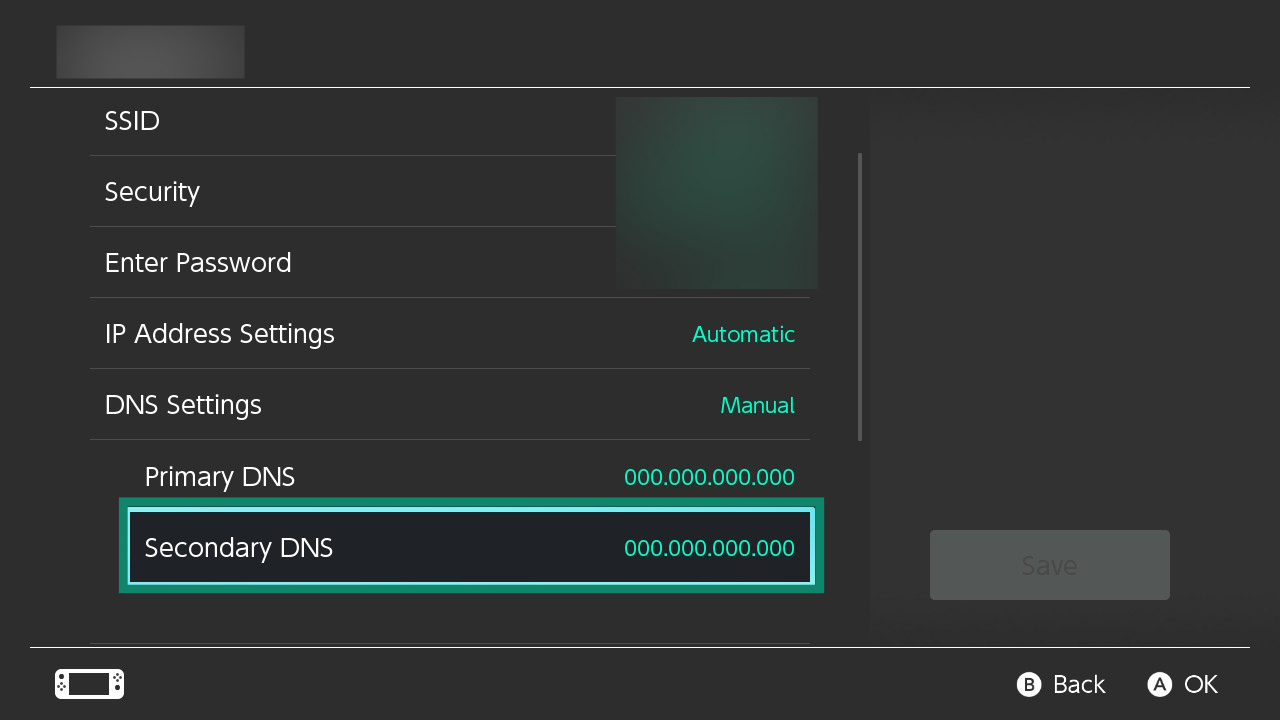
- Then, select Secondary DNS.
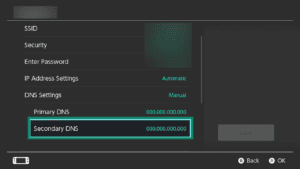
- Enter the second MediaStreamer IP address you found earlier. Select OK.
- Select Save, and then OK.
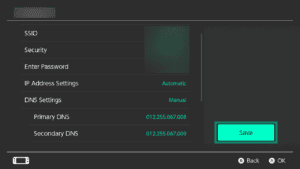
You have completed the MediaSteamer setup process. You now have access to MediaStreamer on your Nintendo Switch.
Need help? Contact the ExpressVPN Support Team for immediate assistance.