How to control internet access at home


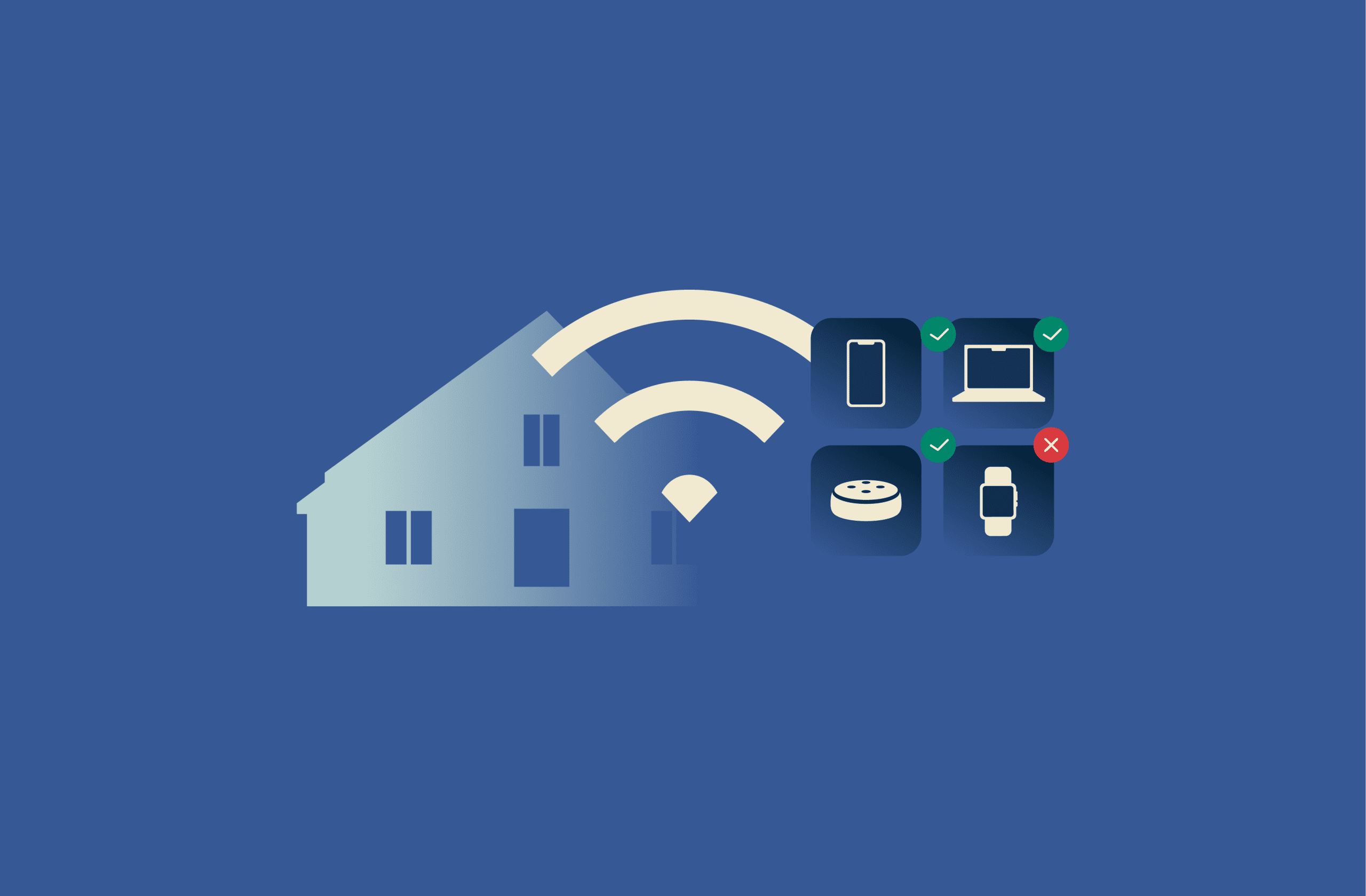
Many households struggle to keep their home network controlled and organized. New devices connect every day, kids begin to spend more time online unsupervised, and unwanted activity can slip through without anyone noticing. Clear, simple controls help create a safer and more predictable internet experience for everyone at home.
This guide looks at practical ways to manage internet access at home. It focuses on easy steps you can take through your router and connected devices to create a more reliable and well-managed home network.
Why controlling internet access matters
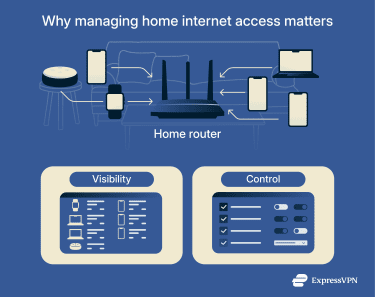 Home networks expand quickly. Phones, laptops, TVs, and smart appliances all share the same connection, and each one adds more traffic. When everything runs at once without oversight, the network can feel crowded and harder to manage. It can also lead to connection speed drops if the total bandwidth used begins to exceed the limits of your internet plan.
Fortunately, there are a few things you can do to have more control and to streamline your network. Certain apps and settings can display which devices are active, how they use your connection, and when they go online. With that visibility, it becomes easier to set boundaries, balance usage, and keep the network operating smoothly.
For example, seeing a full list of connected devices can help you spot unfamiliar entries, notice when a game console is online late at night, or understand which devices use the most bandwidth. That basic awareness gives you a clearer starting point for setting schedules, creating guest networks, or adjusting permissions. Plus, there are even more advanced controls you can engage with that we’ll elaborate on below.
Benefits of internet control
Having a bit more control over your home network makes it easier to keep everything in order. Most importantly, it lets you monitor your kids' access and oversee device security. It can also help you avoid small issues that build up over time and slow down the network for everyone.
- Protecting children online: Children face a wide range of online risks, from contact with strangers to misleading or inappropriate content. Clear controls help reduce exposure to scams, questionable AI-generated material, and other content that can be overwhelming for younger users.
- Improved security: When you control which devices can connect, it becomes easier to spot unfamiliar activity and limit the risks of unwanted access. Simple steps like using strong passwords or managing device permissions go a long way toward keeping your network more secure.
- Better focus and productivity: Setting schedules or limiting certain types of use during important hours helps eliminate distractions, especially when work or study time is competing with entertainment and social media.
Common situations where control is needed
Certain moments at home naturally call for a bit more oversight of your Wi-Fi. These aren’t unusual or technical scenarios, just everyday situations where having simple rules in place can keep things running smoothly. The following examples show when extra control can be especially helpful.
- Guest access management: A separate guest network gives visitors internet access without exposing your personal devices or settings. It also helps keep your primary connection running smoothly, since guests use their own space on the network.
- Managing access for children: As mentioned above, there are many reasons why children need a proper framework for their online activities. Greater internet control can involve setting screen-time limits, using parental controls on individual devices, and reviewing how shared devices are used to help structure your child’s internet time in a safer, more productive way.
- Unwanted device connections: From time to time, a device you don’t recognize may appear on your Wi-Fi. This can happen due to older Internet of Things (IoT) devices or even people outside your household trying to get some free internet. Removing these devices can reduce possible entry points into your network and ensure only authorized users can use your internet.
Effective methods to restrict and manage internet access
There are several practical ways to shape how your home network works, and many rely on tools available through your router or connected devices. These options help you organize activity, keep network performance running smoothly, and create a customized setup that fits your household’s needs.
Change your Wi-Fi password regularly
This is the main barrier between your network and anyone trying to use it (including those with malicious intent), so it’s crucial that it’s secure. Changing it from time to time helps remove access for devices you no longer use and for guests who might still have the old details. It also reduces the chances that a shared or weak password has been reused without your knowledge.
When you update your Wi-Fi password, make it strong and unique, and avoid sharing it more than necessary. Password managers, including ExpressKeys, can help you quickly create and store complex passwords.
Create separate guest networks
Many routers include an option to set up a second Wi-Fi network for visitors. It’s a simple way to provide temporary access without changing the details of your main connection. It also makes it easier to manage passwords or adjust access settings without affecting the devices your household relies on every day.
Even if your guests are trustworthy, they may not be well-versed in internet security. If they download malware or their device is otherwise compromised, a guest network ensures their device is isolated from your primary network.
Enable router-level parental controls
Some routers offer built-in tools that let you manage how different devices use your network. These settings give you a central place to apply rules that don’t depend on the device or operating system. When enabled, they help you guide overall usage across your home in a consistent and organized way.
Routers supplied by internet service providers (ISPs) often offer only basic options, so households that need more flexibility may prefer devices with broader customization. Aircove, ExpressVPN’s Wi-Fi router, is built with privacy and security in mind, and includes a set of user-friendly controls designed to make this type of management easier.
Most modern routers let you exempt certain devices (those used by adults) or can even apply separate rules for each individual device. Here are some examples of the main functions of router-level parental controls:
- Filtering inappropriate content: Some routers let you limit access to certain types of websites or apps. These filters can be applied to the entire network or to selected devices, depending on your router model and settings.
- Scheduling usage times: Time-based controls let you decide when certain devices can go online. These schedules offer a simple way to keep daily routines more consistent. They also help you manage overall screen time.
- Usage insights and activity summaries: Some routers provide simple reports that show when devices were active, how long they stayed online, or which ones used the most data. These summaries aren’t as detailed as when can be achieved through device-level monitoring, but they offer a quick way to spot unusual patterns, confirm whether your set internet schedules are working, and understand your household’s online activity throughout the day.
Use DNS filtering services
Domain Name System (DNS) filtering provides another way to guide what the devices on your network can access. Instead of relying solely on your router’s built-in tools, you can use these services to apply broader content rules that work across all connected devices.
What is DNS filtering?
DNS is the system that translates website URLs into the relevant IP address of the server holding that site’s content. It’s how you’re able to browse the internet through user-friendly site addresses.
A DNS filtering service checks these requests before they go through. If a site falls into a category you choose to restrict, the request doesn’t resolve and the page won’t load. It’s a simple way to guide browsing without installing extra software. The most popular DNS filters are cloud-based, offer free plans, and require no installation, like Quad9 or CleanBrowsing.
How to set it up
If your router offers the option to change its DNS settings, you can apply a filtering service directly from the admin panel. In most cases, this means signing into the router’s interface, looking for a section related to internet or network settings, and locating the fields where DNS addresses can be entered.
The filtering service will provide the addresses you need to type in. After saving the changes, any device that connects through your Wi-Fi will follow the new rules automatically.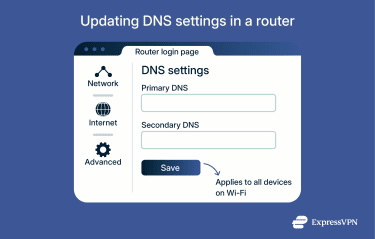
Leverage tools and browser extensions
Network-level tools help manage your Wi-Fi as a whole, but you may find you need individual controls for specific devices. Mobile apps and browser extensions can offer this:
Best tools for Android and iOS
Phones and tablets include built-in features that allow you to control how they’re used. Apple devices have Screen Time, and Android devices have Digital Wellbeing settings. As these controls are device-specific, they’re enforced even outside your home network.
You’ll be able to find Apple’s Screen Time tools in the Settings app on iOS devices. In addition to screen time settings, it allows you to approve app downloads while blocking others and restrict certain types of content.
On Android, Digital Wellbeing controls are found within the system settings. These let you temporarily block distracting apps and set usage timers. However, you’ll need to download the Family Link app from the Google Play store to implement more stringent controls such as content filters.
Browser extensions for desktop
Extensions are another way to control individual devices. They’re easy to install and update, and they help tailor access for each user. You may need multiple extensions for comprehensive control, as many tools focus on a specific type of filtering or time tracking.
For Chrome, BlockSite can block individual sites and categories of sites such as adult content, social media, news, and gaming. In addition, StayFocusd is a productivity extension that offers a variety of timed blocks and features such as the ability to restrict potentially distracting media like images and videos.
FoxFilter offers customizable parental controls, while BlockNSFW is a simpler alternative. For productivity, LeechBlock NG lets you create up to 30 separate sets of site blocks that can be deployed throughout the day. For example, you can have a social media block during the day and a news block in the evening.
Finally, to analyze how time is being used, RescueTime is a popular extension for Firefox. It lets you know how long sites are being used, and can categorize your activities. TimeYourWeb is a similar extension for Chrome.
Note: For Safari, the most reliable option is to use the built-in Screen Time functionality we mentioned earlier; it’s available on both iOS and MacOS. This filters adult content at the system level rather than through the browser, and it also allows you to track usage of both apps and websites. You can access it through Screen Time within the system settings on any device running iOS or macOS.
Advanced internet access management
Sometimes the basic tools on your router aren’t enough to keep everything running smoothly, especially in a home with several devices. In those cases, more advanced controls can give you a clearer view of how your network is being used and let you fine-tune your setup as needed.
These options don’t require deep technical knowledge. They simply offer more detailed ways to manage traffic, keep important devices running smoothly, and maintain a stable connection during busy periods.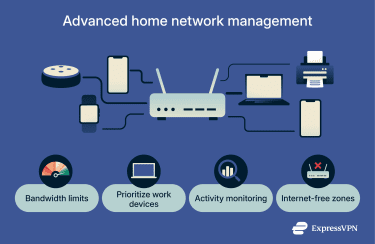
Restrict bandwidth by device
Some routers let you set limits on how much bandwidth certain devices can use, and less bandwidth almost always means less speed. This lets you control which devices get the best network performance when there are many connections. Giving lighter tasks a smaller share of the connection helps prevent slowdowns and keeps the whole network running more smoothly.
Manage access for work-from-home users
People working from home depend on a connection that doesn’t drop during meetings or slow down when housemates start streaming videos. Giving work devices higher priority helps keep calls clear and work apps stable. It’s a simple way to make sure important tasks don’t compete with everyday browsing or entertainment.
Monitor internet activity
Many home routers include a section that lists the devices on your network and the amount of data each one has used. Reviewing this information occasionally can help you understand how your network traffic is being used, notice unusual activity, and troubleshoot slowdowns.
Some routers also show when a device was last active or which network band it’s using. For clarity, there are 2 common network bands for most routers, 2.4GHz and 5GHz. 2.4GHz offers wider coverage at slower speeds, while 5GHz offers faster speeds over shorter distances. Knowing which band each device uses can help you spot weak connections, understand why certain devices slow down, and decide whether you need to adjust where the device sits or how your network is organized.
Create internet-free zones at home
Not every solution needs to be technical. Setting areas of the home where devices stay offline, like keeping phones out of the dining room or turning off screens in bedrooms, can make daily routines feel calmer.
You can also set short periods during the day when certain rooms stay screen-free, which helps everyone take small breaks from notifications and multitasking. These simple boundaries support more mindful use of devices and help shared spaces feel more focused and present.
Should you use a VPN at home?
A virtual private network (VPN) can be useful at home, but whether you need one depends on what matters most to you. A few points to consider:
- Commercial VPNs can be installed on an individual device, or in some cases, even on a router. In both cases, they encrypt your connection to the wider internet, but the key difference is that the former method only protects the relevant device, while the latter protects all devices under your network.
- This encryption makes your connection unreadable to anyone monitoring your online activity, including your ISP and cybercriminals. It also hides your IP address, and as such, your approximate location, from the websites and online services you interact with.
- Some VPN services also offer features like ad or tracker blocking or basic content filters, which can act as an additional layer of protection alongside your existing tools.
FAQ: Common questions on how to control internet access at home
How do I control internet access on my router?
Some routers provide options such as device lists, scheduling tools, or basic filtering. From the admin panel, you can update your Wi-Fi password, set schedules for specific devices, or enable basic filters that limit the types of sites your network can access. You can quickly shape your home internet usage with these options.
What's the best parental control tool?
There’s no single tool that fits every family. Router controls help manage the whole network, while mobile and desktop apps offer more tailored options for individual devices. If you just want blanket controls over all devices, configuring your router settings and/or setting up Domain Name System (DNS) filtering will work best. For more specific content filters per device, you’ll be better off using apps or extensions on each individual device. You can combine both solutions, but this will raise the complexity of your network management.
Does DNS filtering slow down the internet?
In typical setups, not really; Domain Name System (DNS) filtering services simply check website requests before they load, so the impact is minimal.
How do guest networks improve control?
A guest network keeps visitor devices separate from your personal ones. This separation makes your main network easier to manage and protects it from compromised visitor devices.
How do I block specific websites on my home network?
You can block websites through your router settings or by using a Domain Name System (DNS) filtering service. Both work similarly, allowing you to restrict access to individual sites or specific categories of content.
Take the first step to protect yourself online. Try ExpressVPN risk-free.
Get ExpressVPN