Should you use a VPN at work? ExpressVPN options explained



Using a VPN for work can help protect your internet traffic when you work remotely, particularly on public Wi-Fi or other networks you don't fully trust. ExpressVPN gives you two ways to set this up. A regular subscription covers your own devices, which suits freelancers and anyone working remotely on personal hardware. When you're protecting a whole team, ExpressVPN for Teams gives every member the same apps and provides an admin dashboard for managing licenses.
Neither option replaces your employer's VPN if it has one, though. A corporate VPN can provide secure access to internal resources like intranets and file servers, which a personal VPN doesn't generally provide. If you use a company-managed laptop, check your organization's IT policies before installing a personal VPN.
Why choose ExpressVPN to protect your work
With ExpressVPN connected, your device sends its traffic through an encrypted tunnel to a VPN server, which passes it on to the sites and apps you use. The network you're on sees an encrypted connection to that server, not your work traffic.
Here are some of the key benefits of using ExpressVPN for work.
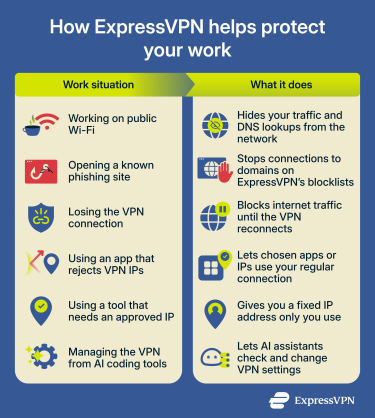
Encrypt your connection on networks you don’t control
When you work remotely, you may need to connect through public Wi-Fi networks you don't manage. HTTPS gives you some protection, since most sites use it to encrypt the information you exchange with them. However, it doesn't hide which sites and services you connect to, so anyone monitoring the network can still see where your traffic goes. Apps that send data without encryption are even more exposed, because their data can be read in full.
ExpressVPN closes these gaps by moving your traffic inside the VPN tunnel. That includes your Domain Name System (DNS) lookups, the requests that turn a site's name into its address. Instead of going to the network's resolver, they go to ExpressVPN's own private DNS. This helps limit what the local network can see about your work activity, although it doesn't hide everything about your connection.
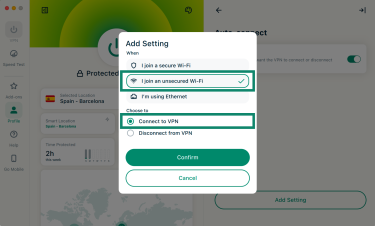
To keep that protection in place without having to remember to connect, set up auto-connect so ExpressVPN turns on whenever you join an unsecured Wi-Fi network.
Block known malicious sites and trackers
When working online, a convincing fake sign-in page could put your work accounts at risk. A VPN encrypts your connection, but it can't tell whether a website is legitimate or stop you from entering your password on a phishing page.
ExpressVPN's Advanced Protection can help reduce this risk by blocking connections to known malicious domains. Its malicious site blocking prevents your device from connecting to domains on blocklists of known phishing and malware sites.
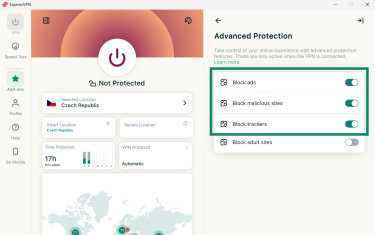
Keep work traffic protected if the VPN drops
A VPN connection can drop for a moment when Wi-Fi gets weak or you move between networks. Until it reconnects, some of your work traffic could skip the VPN and go out over your regular internet connection instead.
ExpressVPN’s Internet Kill Switch protects your privacy by blocking all internet traffic if the VPN connection drops for whatever reason. It's on by default in ExpressVPN’s apps. For stricter coverage, the Enable at all times option blocks traffic whenever you're not connected to the VPN, including after you disconnect on purpose.
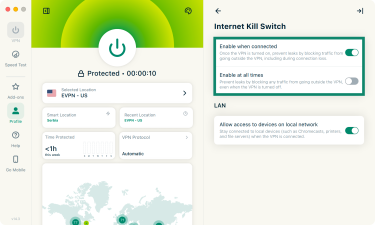
That extra strictness comes at a cost, though: with Enable at all times turned on, nothing on your device can go online until ExpressVPN connects.
Keep work apps running that don’t work over a VPN
Some work apps and sites might refuse connections that come from VPN IP addresses. Switching the VPN off every time you open one of them leaves the rest of your traffic exposed.
Split tunneling avoids that trade-off. It lets you pick apps or IPs that skip the VPN and connect directly, while everything else stays in the tunnel. In the ExpressVPN app for desktop, you'll find it under Profile > Split Tunneling, where you add rules with Add App or Add IP.
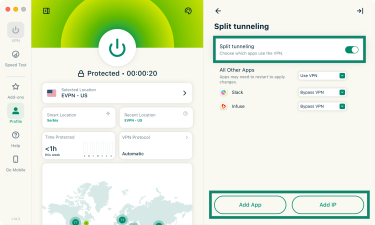
Each exclusion will use your regular connection, so keep the list short when you're on public Wi-Fi.
Get a fixed IP address for tools that use allowlists
Some business tools only accept logins from IP addresses on an approved list, often called a whitelist or allowlist. Regular VPN locations don't fit that setup, since many users share each server's IP address and you might get a different IP each time you connect.
A Dedicated IP solves this by giving you an address that only you use and that stays the same every time you connect. Dedicated IP is included with the Express Pro plan and available as an add-on with the Basic and Advanced plans.
The way ExpressVPN assigns the address also protects your privacy. It uses blinded tokens, which can be redeemed without revealing who they were issued to, so ExpressVPN doesn't know which dedicated IP belongs to your account.
Control the VPN from your AI coding tools
For developers, the VPN can also become part of the coding workflow itself. ExpressVPN's MCP server connects the app to AI assistants through Model Context Protocol (MCP), an open standard that lets AI tools work with other software through a shared interface.
Once it's on, an assistant like Claude Code or Codex can check whether you're connected, switch server locations, or confirm your public IP. That comes in handy before running a script that handles client data or when you want to test how your own app behaves from another region.
Giving an AI tool control of your VPN only makes sense if that control has limits, and the MCP server keeps them tight. It runs only on your computer, stays off until you turn it on, and accepts a fixed set of commands. The AI tool never gets your account credentials or browsing history. It can check whether Internet Kill Switch is on, but it can't change that setting.
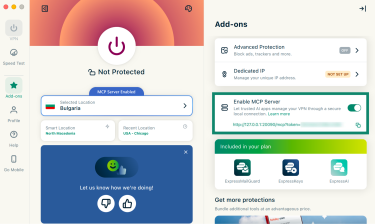
The MCP server works in the Windows, Mac, and Linux apps and is available to all ExpressVPN and ExpressVPN for Teams users with 1-year and 2-year subscriptions.
What does ExpressVPN for Teams add?
Everything above works the same way with ExpressVPN for Teams, since team members use the same ExpressVPN apps as personal subscribers. What Teams adds is the admin side, built for small businesses that need to protect several people without running VPN servers of their own:
- Admin dashboard: Manage licenses, users, and payments in one place, and reassign a license when someone joins or leaves.
- Automatic user sync: Connect ExpressVPN for Teams to Google Workspace, Okta, Microsoft Entra ID, and other identity providers. When you remove someone from your identity provider, their license is revoked and freed up for someone else.
- Dedicated IP for Teams: Fixed IP addresses that only your team uses, so you can add one set of addresses to the allowlists for your tools instead of tracking everyone's home connection.
Dedicated IP for Teams works like the individual version, scaled up for an organization, with one difference in how IPs are assigned. To provide and manage the service, ExpressVPN links each address to the organization that bought it, while a personal Dedicated IP isn't tied to your account.
The Dedicated IP add-on is available with 1-year and 2-year Teams subscriptions. To use it, team members need to connect with the WireGuard protocol and turn off Advanced Protection features.
Which ExpressVPN option do you need for work?
A personal ExpressVPN subscription covers up to 10, 12, or 14 simultaneous connections depending on the tier, and you can share it within your household. That makes it the natural fit for freelancers and anyone who works on their personal laptop and phone.
If you're buying VPN access for staff, ExpressVPN for Teams is the better option. It starts at five licenses, each covering up to eight connections at once.
| ExpressVPN | ExpressVPN for Teams | |
| Designed for | Individuals and freelancers | Small businesses/teams |
| Minimum purchase | 1 subscription | 5 licenses |
| Simultaneous connections | 10, 12, or 14 depending on tier | 8 per license |
| Admin dashboard | No | Yes |
| ExpressVPN apps | Yes | Yes, the same apps |
| Encryption and IP masking | Yes | Yes |
| Dedicated IP | Included with Express Pro; add-on for Basic and Advanced | Dedicated IP for Teams add-on with 1-year and 2-year subscriptions |
| MCP server | 1-year and 2-year subscriptions | 1-year and 2-year subscriptions |
| Best for | Personal privacy while working | Managing VPN protection across a team |
How to use ExpressVPN for work
Personal subscribers and ExpressVPN for Teams members end up in the same apps, so the only real difference in setup is how you get your account.
Set up and use ExpressVPN on your devices
The steps below are for the ExpressVPN app for Mac. You can find more device-specific instructions in the ExpressVPN setup tutorials.
- Go to the ExpressVPN+ setup page and click Download Now.
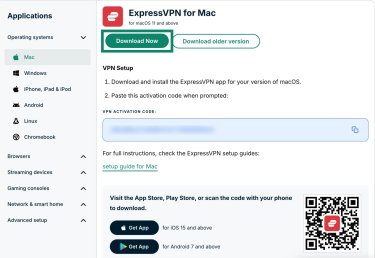
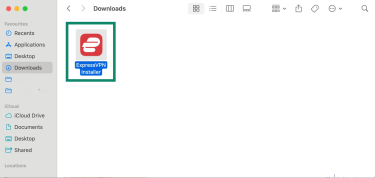
- Open the ExpressVPN installer file and follow the installation prompts.
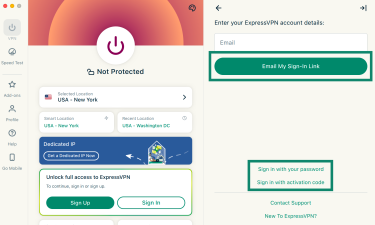
- Once you launch ExpressVPN, click Sign In.
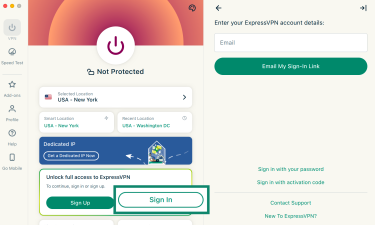
- Sign in with your ExpressVPN account email and password, an email sign-in link, or your activation code.
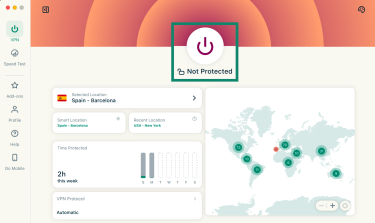
- Click the ON/OFF button to connect. ExpressVPN connects to the location it recommends, called Smart Location, by default.
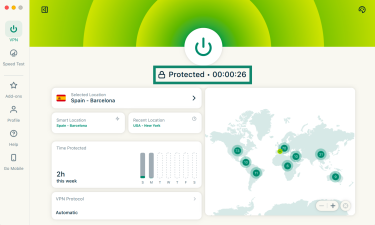
- Check that the app shows Protected.
Enable auto-connect
Once you're connected, a few more clicks make ExpressVPN connect on its own whenever you join an unsecured Wi-Fi network:
- Click the Profile tab.
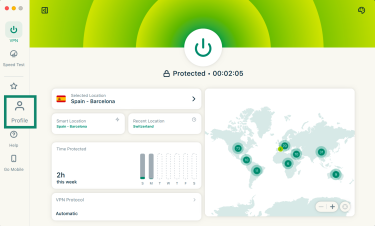
- Under Settings, click Auto-connect.
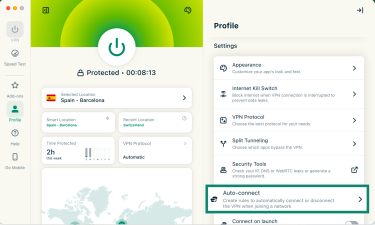
- Click the toggle to turn on auto-connect.
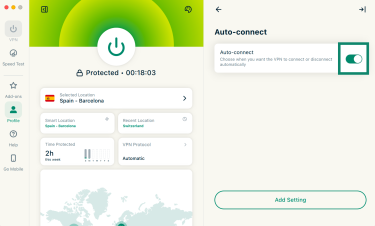
- Click Add Setting.
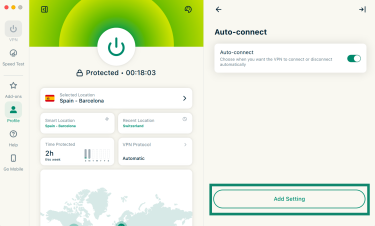
- Select When I join an unsecured Wi-Fi network, pick Connect to VPN, and click Confirm.
Set up ExpressVPN for Teams
With ExpressVPN for Teams, the admin handles most of the setup. It starts on the ExpressVPN for Teams page, where the admin chooses a subscription term and the number of licenses. After payment, one email asks the admin to set a password for the admin account, and a second links to the dashboard.
From the dashboard, licenses can go out one person at a time or through a CSV upload. They can also be assigned automatically by connecting an identity provider through System for Cross-domain Identity Management (SCIM).
Each team member who gets a license then receives an invite email and has 24 hours to create a password and finish setting up their account. After signing in, they download the ExpressVPN app and use it the same way personal subscribers do.
When you need your company’s VPN instead
A company VPN and ExpressVPN serve different purposes. A company VPN can connect your device to your employer's private network, giving you access to internal apps, intranet sites, file servers, and databases that aren't publicly accessible. ExpressVPN routes your internet traffic through its own servers instead. It doesn't automatically give you access to your company's private network.
ExpressVPN’s Dedicated IP for Teams can help when cloud services or company resources restrict access to approved IP addresses. Your team gets fixed IP addresses that IT can add to an allowlist, but this doesn't replace a company VPN when access depends on connecting to a private network.
Company devices add another consideration. On a company-managed laptop or phone, you need to ask your IT team before installing ExpressVPN. Managed devices often come with their own security and VPN software, and a second VPN could potentially break your company connection or go against workplace policy.
What ExpressVPN can’t protect your work from
ExpressVPN protects data while it travels between your device and the VPN server, but there are other ways that work data can get compromised:
- Phishing and social engineering: ExpressVPN’s Advanced Protection blocks connections to known phishing domains on its blocklists, but it can't catch every malicious site. It also can't stop someone from manipulating you into sharing sensitive information over the phone, by email, or in a chat.
- Malware already on a device: Malicious software running on your device sees your data before it's encrypted through a VPN. That’s why it’s important to use an antivirus as well.
- Compromised accounts: A VPN can't prevent someone from accessing your account with a stolen or guessed password. That said, ExpressKeys, included with ExpressVPN's Advanced and Express Pro plans, helps reduce the risk of a compromised password exposing multiple accounts by letting you create strong, unique passwords for each login. It can also generate two-factor authentication (2FA) codes, adding a sign-in step on accounts that support it.
- Data shared with the wrong person: A VPN can't stop you from sending a file to the wrong address or sharing a link too widely. The file is encrypted on its way, but it still reaches whoever you sent it to.
- Vulnerabilities in work apps: Attackers can exploit flaws in unpatched software however you connect, since the attack targets the app rather than your connection. Installing updates when they're released helps close those gaps.
- Unauthorized access to company systems: Multi-factor authentication (MFA) helps verify who's signing in, while access permissions determine which systems and data they can use. A VPN protects the connection, but it doesn't ensure users have only the access they need. If an account has excessive permissions, it can still expose sensitive company data if compromised.
Teams admins should also be aware that their dashboard manages VPN licenses only and is no substitute for device management, antivirus, or a firewall, so those tools still need to run alongside it.
Why trust ExpressVPN for work?
When you use a VPN for work, the VPN provider handles your internet traffic, so it’s vital that there’s some transparency around its logging practices.
ExpressVPN's no-logs policy states that it doesn't keep logs of your browsing history, traffic destinations or metadata, DNS queries, or the IP addresses you’re assigned. What’s more, every ExpressVPN server runs on TrustedServer technology, which keeps everything in RAM, so all data on a server is wiped each time it restarts.
ExpressVPN's systems and products have undergone numerous security audits by firms including Cure53, KPMG, and PwC. Each audit reflects how systems worked when they were tested, and the reports have all been made public.
Teams accounts follow the same no-logs policy; what ExpressVPN knows about a Teams account is purely organizational. The registered email owner is the admin who manages the licenses, and each Dedicated IP for Teams address is linked to the organization that bought it so admins can manage it.
Protect your work connection with ExpressVPN
Whether you're protecting your own laptop or your whole team, ExpressVPN encrypts your work traffic on any network you join, and ExpressVPN for Teams adds a dashboard for admins.
FAQ
Can my employer see what I do when I use ExpressVPN?
Your employer generally can't see which websites you visit by monitoring network traffic routed through ExpressVPN, because the VPN encrypts that traffic between your device and the VPN server. That said, monitoring software, device management tools, and company accounts work outside the VPN tunnel, so your employer may still observe your activity through them.
Will ExpressVPN slow down my work connection?
Like any VPN, ExpressVPN may slow down your work connection somewhat, since your traffic is encrypted and routed through a VPN server before it reaches the internet. To limit the slowdown, connect through Smart Location, which picks a recommended server location for you. You can also switch servers and compare your speeds in the app's Speed Test tab.
Can my employer track my location when I use ExpressVPN?
ExpressVPN masks your real IP address, making it harder to infer your approximate location from that address. However, it doesn't prevent other forms of location tracking. For example, location services or device-management software on a work-managed phone or laptop may still report your device's location, and your employer might be able to infer it from other workplace activity too.