How to avoid malicious websites with ExpressVPN


Malicious websites are a common starting point for a variety of cyberattacks. They can lead to malware infections, where dangerous pop-ups or file downloads infect the target computer. They can also be used for phishing schemes, where they trick people into revealing sensitive personal data by posing as a trusted brand or figure.
Attackers can then use that stolen data to commit financial fraud and identity theft, sometimes without the victim even realizing anything has happened.
ExpressVPN's Advanced Protection feature helps by blocking connections to known malicious domains, including those opened through dangerous pop-ups. Web Protection can also block known malicious, phishing, and scam pages through the ExpressVPN browser extension, even without an active VPN connection. While neither feature is a substitute for antivirus software or healthy browsing habits, both help reduce your exposure to online threats.
How ExpressVPN helps you avoid malicious websites
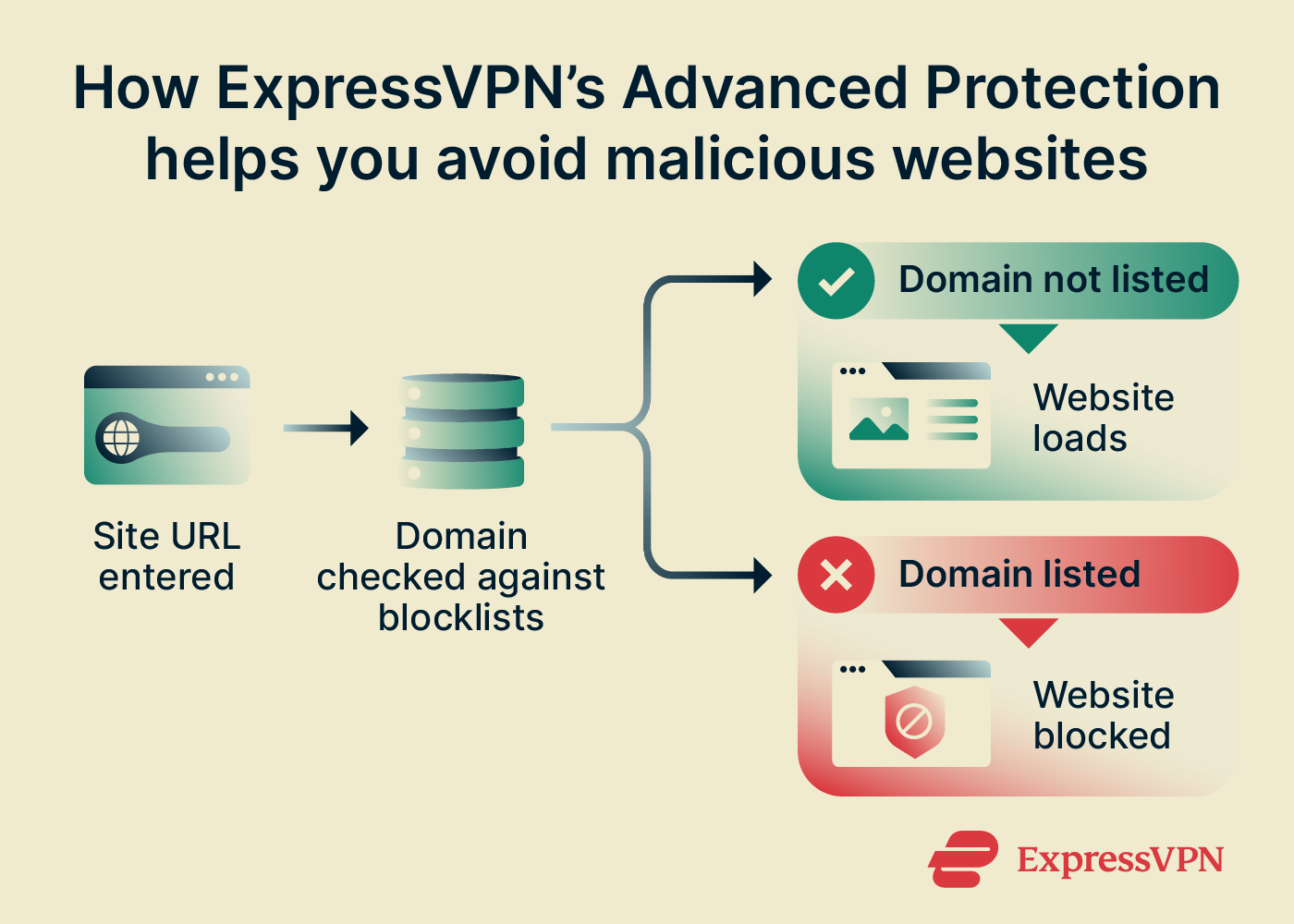
When you try to visit a website, ExpressVPN’s Block malicious sites feature checks the domain against several blocklists of known harmful websites. If the domain appears on one of the lists, Advanced Protection blocks the connection before the page can load.
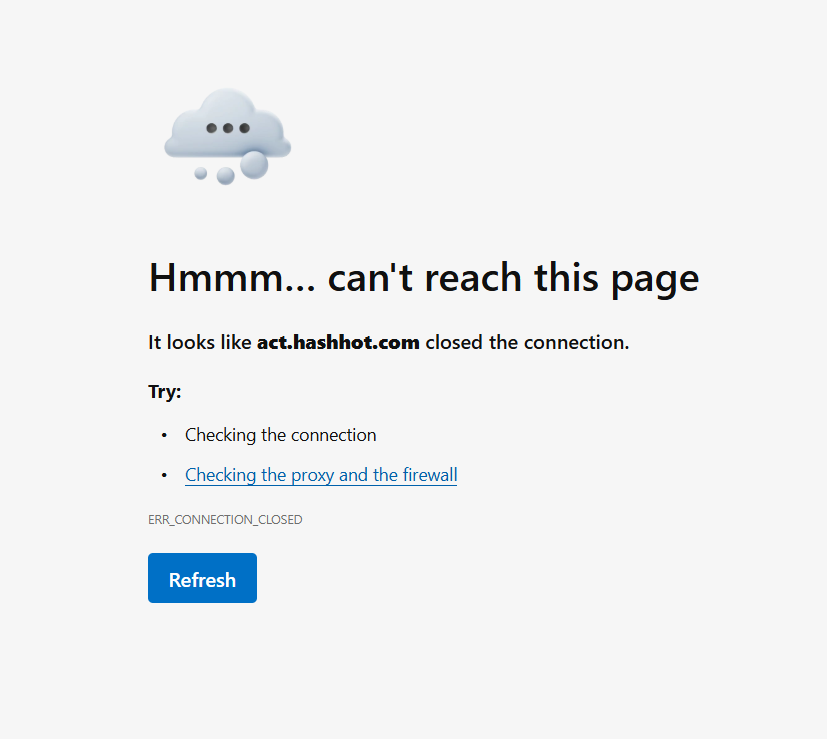
Advanced Protection’s Block ads feature also blocks connections to known advertising domains before ads load. This can help reduce exposure to ads that redirect you to dangerous websites.
That said, it’s worth noting that Advanced Protection only blocks domains that appear on its lists of known threats. There is a chance that new or undiscovered malicious sites could still load. Advanced Protection also only blocks websites; it doesn’t scan downloaded files for malware or replace antivirus software.
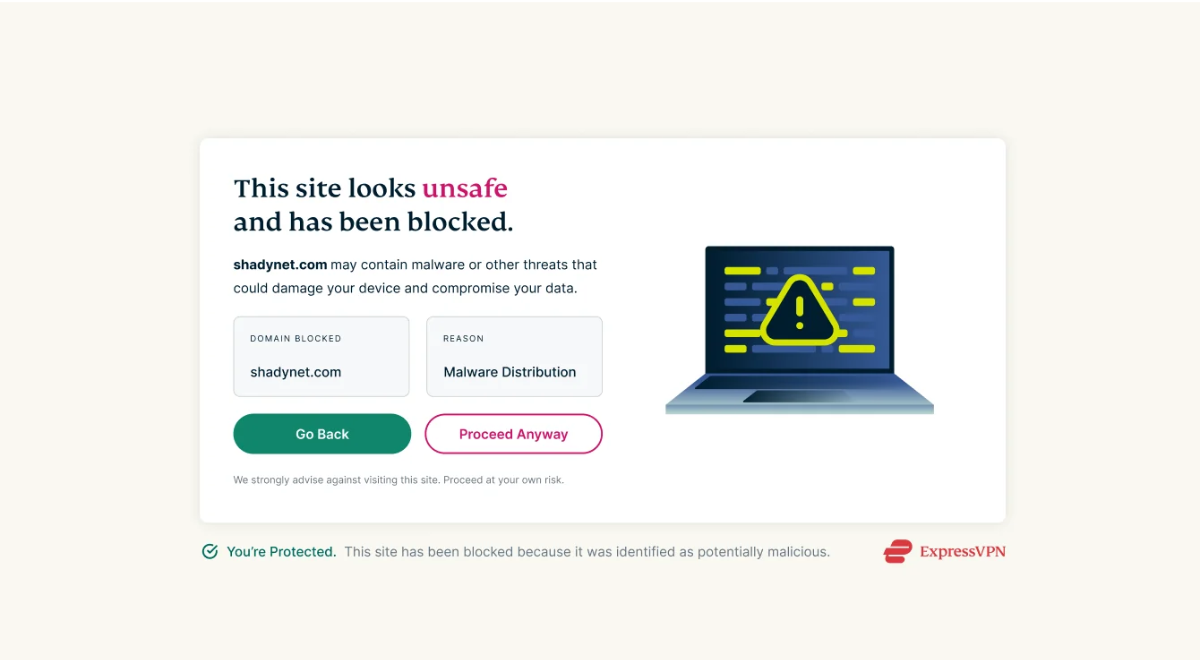
 Web Protection offers another way to block known malicious websites through the ExpressVPN browser extension. It checks full web addresses, so it can block harmful pages or scripts without blocking the entire website. It works without an active VPN connection and shows a warning explaining why it blocked a page.
How to block malicious websites with ExpressVPN
You can block known malicious websites using Advanced Protection in the ExpressVPN app or Web Protection in a supported browser extension.
The steps below show how to enable Advanced Protection on Android, but the process is similar across supported operating systems.
-
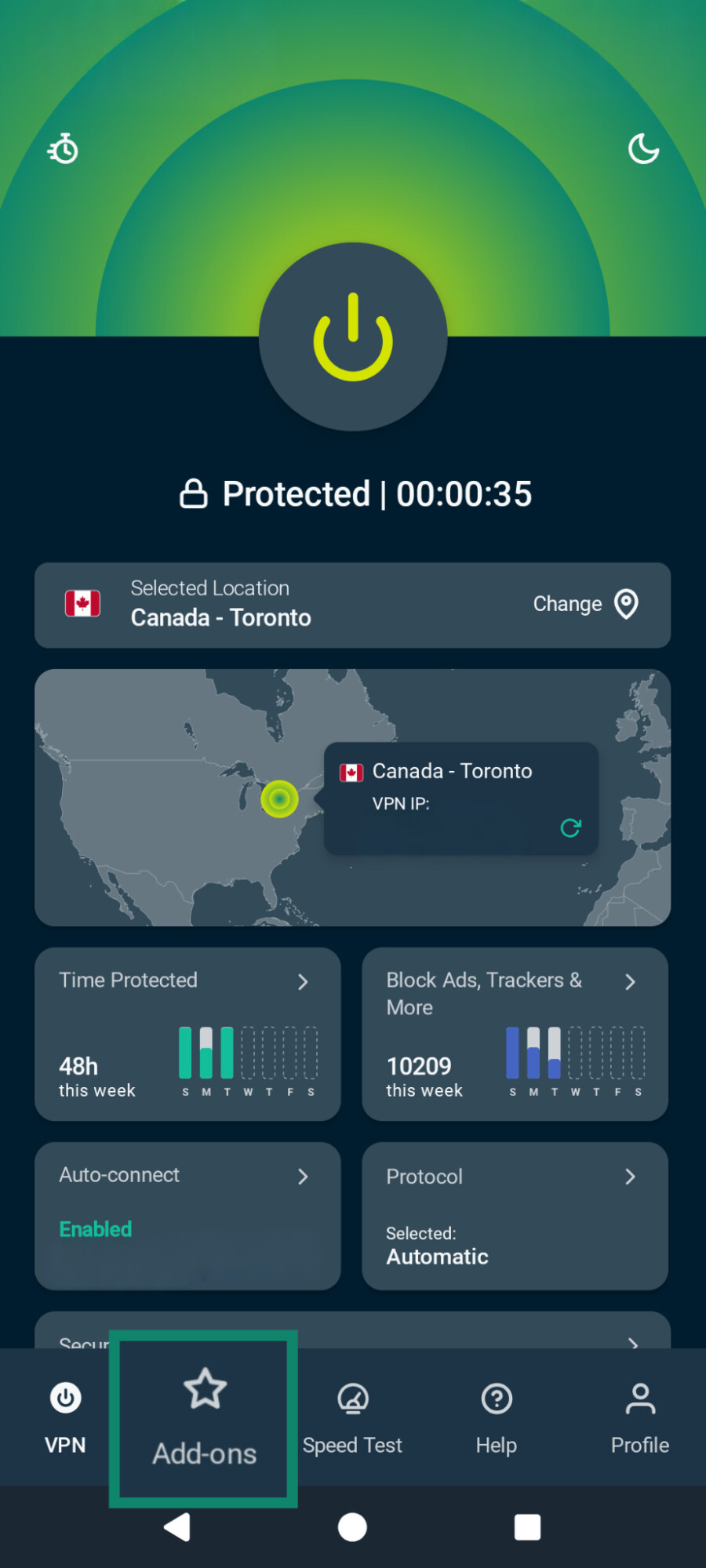
Open the ExpressVPN app.
![The ExpressVPN app, showing an active connection.]()
-
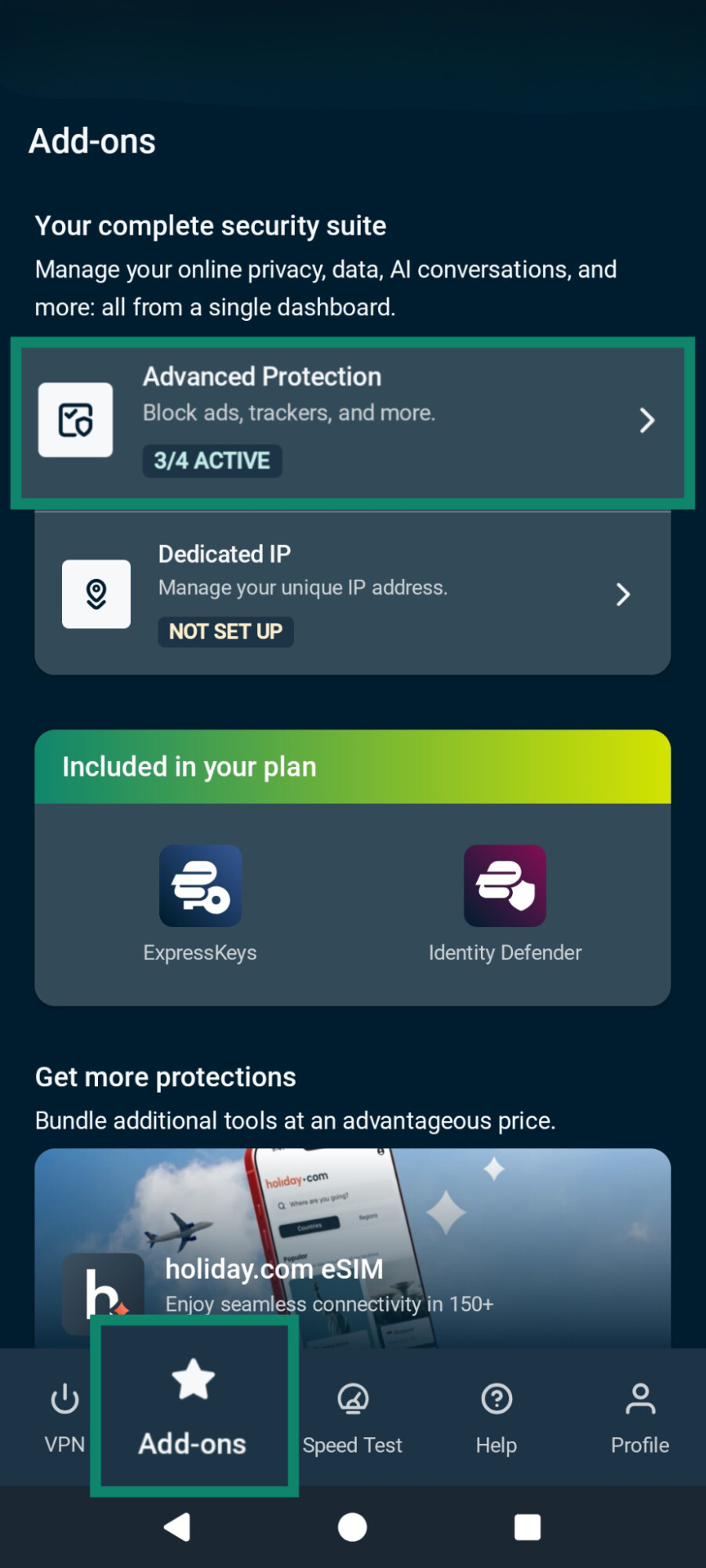
Tap Add-ons and open Advanced Protection.
![The ExpressVPN Add-ons page, highlighting the Add-ons button and the Advanced Protection tab.]()
-
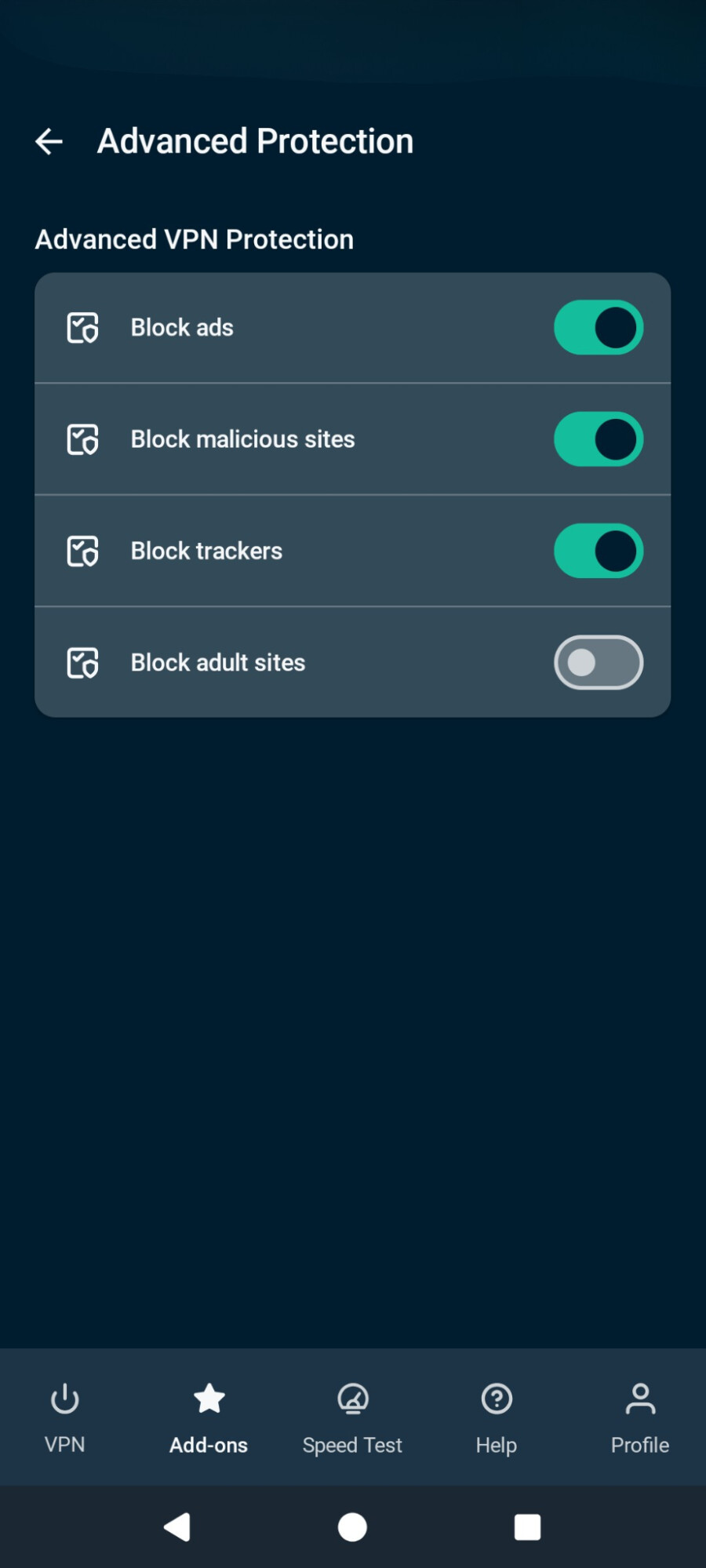
Enable Block malicious sites and Block ads. You can also toggle on Block trackers and parental controls via Block adult sites.
![The ExpressVPN Advanced Protection page, highlighting Block ads, Block malicious sites, and Block trackers.]()
-
Connect to the VPN to activate Advanced Protection.
Note: Click here for full guides on how to enable Advanced Protection features on all supported devices.
To enable Web Protection without needing to connect to the VPN, install and sign into the ExpressVPN browser extension. Then, go to Menu > Web Protection and toggle on Threat Manager. Note that this will only protect the traffic in your browser, not device-wide like Advanced Protection does. See our Web Protection setup guide for more information.
Stop dangerous websites before they load
ExpressVPN's Advanced Protection and Web Protection automatically block connections to known malicious sites, helping protect you from phishing, scams, and other online threats.
Browse more safely with ExpressVPN
Try it risk-free with a 30-day money-back guarantee for new users.
FAQ
How do I report a malicious site?
How can you check if a website has a virus?
The warning signs of a website having a virus include sudden downloads, redirects, suspicious pop-ups, and a poorly designed UI.
However, you can’t confirm a site has a virus just by looking, so it’s important to pay attention to your browser or security tools' warnings. For example, ExpressVPN’s Advanced Protection and Web Protection can prevent known malicious websites from loading.