What is a fake antivirus and how to protect your device


If you’ve ever encountered an alarming pop-up claiming your device is “critically infected” and urging you to download security software immediately, you may have encountered a fake antivirus, also known as rogue antivirus or scareware. These programs pretend to protect your device but are instead designed to steal money, collect personal data, or install malware.
This guide explains how fake antiviruses work, how to recognize them, how to remove them safely, and how to prevent them from infecting your devices in the future.
What is a fake antivirus?
A fake antivirus is rogue security software that presents itself as a legitimate security tool while providing no real protection.
There are two main types of fake antiviruses:
- Scam-only fake antiviruses: These don’t harm your device. They’re simply useless programs that pretend to find malware and demand payment to “fix” problems that don’t exist.
- Malware-disguised fake antiviruses: These are actually malware in disguise. Once installed, they may steal sensitive information, such as passwords or banking details, interfere with normal system behavior, or give attackers unauthorized access to your device.
How fake antivirus tricks users
Fake antiviruses trick many users by impersonating trusted software or system interfaces. For example, a fake antivirus may make their bogus virus warning pop-up look like it came from well-known antivirus software. Some also disguise their messages as system alerts, making the warnings seem “official”.
How fake antiviruses infect devices
Fake antiviruses rely less on technical vulnerabilities and more on social engineering to infect devices. In other words, instead of performing the much harder task of breaking a system’s defenses, bad actors try to trick users into taking actions that compromise their own devices.
In the following sections, we explain the common delivery methods and the typical flow of a fake antivirus attack.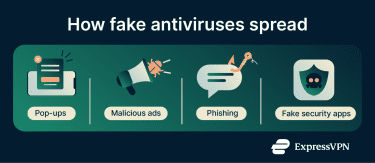
Delivery methods (downloads, pop-ups, emails)
Here are the main distribution channels for fake antiviruses:
- Fake virus warnings: Intrusive pop-ups that claim your device is infected with a virus and pressure you to download a virus removal tool.
- Fake virus scanners: Free online virus scanners that claim they’ve found malware on your device and present the fake antivirus as a solution.
- Malicious ads (malvertising): Advertisements promoting fake antivirus software that redirect you to a malicious site or directly initiate a download of the fake antivirus.
- Phishing emails: Emails impersonating well-known tech companies that contain links or attachments that deliver the fake antivirus.
- Phishing tech support scams: Messages, calls, or pop-ups claiming to be from tech support that instruct you to download or install a fake antivirus.
- Bundled software: Malware-infected installers that include a fake antivirus alongside the software you intended to download.
- Fake antivirus apps: Fake mobile apps, especially on Android, that impersonate legitimate security tools and deliver malware instead.
- SEO poisoning: Cybercriminals manipulate search engine results so that malicious sites appear at the top when you search for terms like “free online virus scan,” tricking you into downloading fake antivirus software.
Fake antivirus attack flow explained
Fake antivirus attacks can unfold in different ways, but many follow a similar progression. Here’s what a typical attack sequence looks like:
- You encounter a deceptive alert: The attack typically begins when you see a fake warning that claims your device is infected or at risk and encourages immediate action.
- You’re led to a fraudulent site or download: Interacting with the alert often redirects you to a malicious webpage or download prompt. The page may simulate a system scan, display fabricated infection results, or show urgent warnings meant to heighten fear and push you toward installing the “solution.”
- The fake antivirus is installed: After you install the program, the software reveals its true purpose. Some fake antivirus tools simply demand payment to “fix” non-existent issues. Others go further by harvesting personal data, installing additional malware, or interfering with normal device behavior (e.g., disabling your firewall or changing your browser homepage).
How to detect a fake antivirus
Spotting a fake antivirus can be tricky because the messages or apps are designed to look legitimate. The following warning signs can help you identify them.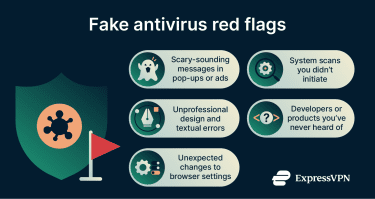
Scare tactics
Fake antiviruses are often classified as scareware malware because they rely on fear to manipulate users into acting rashly and taking harmful actions. They may display scary-sounding messages like:
- “Warning! 5 viruses detected!”
- “Your data is at risk!”
- “Critical threats found!”
These messages may be accompanied by a button “Remove the virus now,” a phony Microsoft or Apple tech support number, and/or a countdown until the issue is supposed to worsen.
Legitimate antivirus tools never diagnose your computer through a random website or pop-up.
Unsolicited scans
Fake antiviruses often claim to have conducted a system scan of your device and detected critical threats. For example, you may be presented with an in-progress “scan” or a full-screen infection report.
Unwanted scans like this are always a red flag. Legitimate antiviruses only perform scans when you initiate them or have scheduled them in the program.
UI inconsistencies and errors
Fake antivirus software often looks unprofessional compared to legitimate security tools. Watch for:
- Typos or poor grammar: Websites, alerts, and pop-ups contain basic textual errors that a legitimate provider would have caught.
- Branding mismatches: Logos, icons, colors, or fonts don’t match legitimate antivirus software or use outdated/incorrect versions.
- Sloppy layout or design: Windows, buttons, or menus are misaligned, broken, inconsistent, or otherwise look cheap or rushed.
Unknown developer or product name
Avoid antivirus software that:
- You’ve never heard of before.
- Have generic names, like Antivirus 10, Super AV, or Virus Scanner Pro.
- Have no official website.
- Have little or no reviews.
Browser hijacking
Some fake antiviruses may modify your browser settings without your consent. The following signs often indicate that malicious software is present on your device:
- Your homepage is set to a site you didn’t choose.
- Your default search engine was changed.
- You notice a browser extension or toolbar appear that you didn’t install.
- You are constantly redirected to unfamiliar websites while browsing.
- You're bombarded by unexpected pop-ups or alerts.
Real vs. fake antiviruses: Key differences
Fake antivirus software is designed to mimic real security tools, but there are subtle differences in how they operate. Understanding these differences can help you avoid falling for scams.
| Feature | Real antivirus | Fake antivirus |
| Source of alerts/pop-ups | System notifications generated by an installed antivirus program (no URL) | Alerts or pop-ups often open in a browser window |
| Tone and urgency | Informative and measured | Alarmist or threatening |
| Requests | Offers legitimate options when a threat is detected, such as quarantining, removing, or viewing details of the infected file | Pushes you to download a “fix,” call a number, or make a purchase |
| Scans | Scans only run when manually initiated or scheduled; scans run within the installed antivirus program | “Scans” run automatically without your input; “scans” often appear in a browser window |
| Behavior | Does not modify system or browser settings without user consent | May change browser or system settings without your knowledge |
| Installation | Downloaded from official websites or app stores | Downloaded from pop-ups, alerts, or bundled installers |
| Uninstallation | Can be removed cleanly and easily through system settings | May be difficult to remove completely |
| Branding and interface | Polished, consistent, professional interface | May mimic legitimate software but contain errors, typos, mismatched icons, or sloppy design |
| Credibility | Provided by a well-known, trusted company; product has many reviews | Developer is unknown or unverified; limited or no reviews; no official website |
How to remove a fake antivirus
If you think you’ve installed a fake antivirus, it’s best to act quickly. Follow the steps below in order.
Note: Fake antiviruses on iOS are almost always a browser-based scam, not malware. There's no need to remove anything; simply stop engaging with the pop-up.
Step 1: Disconnect from the internet
This prevents the malware from:
- Sending stolen data.
- Downloading additional components.
- Communicating with attackers.
Step 2: Boot into Safe Mode
Safe Mode starts a device with only the essential system components, preventing most third-party apps and background services (including most malware) from loading. This is important because some types of malware actively block legitimate security tools.
Windows 11
- Open the Start menu and click Power > Restart.
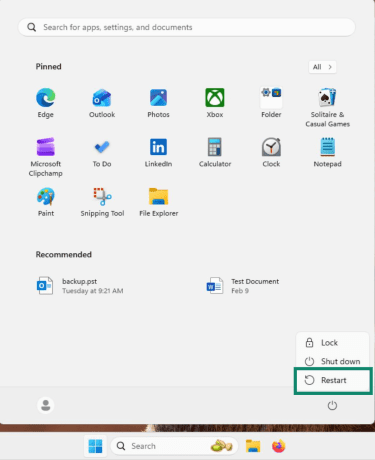
- After the reboot, click on Troubleshoot.
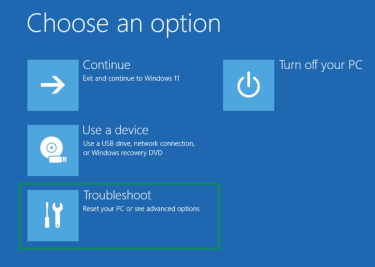
- Choose Advanced options.
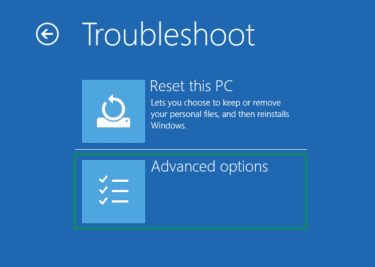
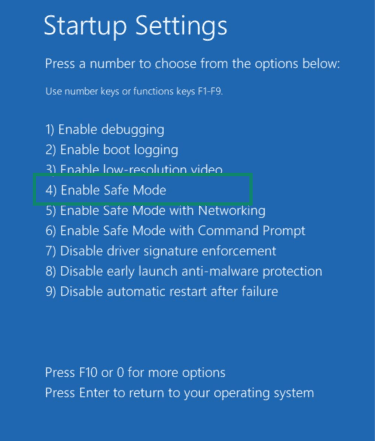
- Click Startup Settings.
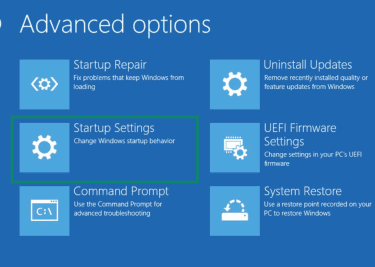
- Select Restart.
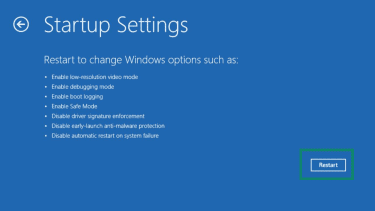
- When prompted, choose Enable Safe Mode.
macOS
- Shut down your Mac.
- Turn it on and hold the power button until startup options appear.
- Select your startup disk, hold Shift, and click Continue in Safe Mode.
Android
- Hold the power button and the volume down button.
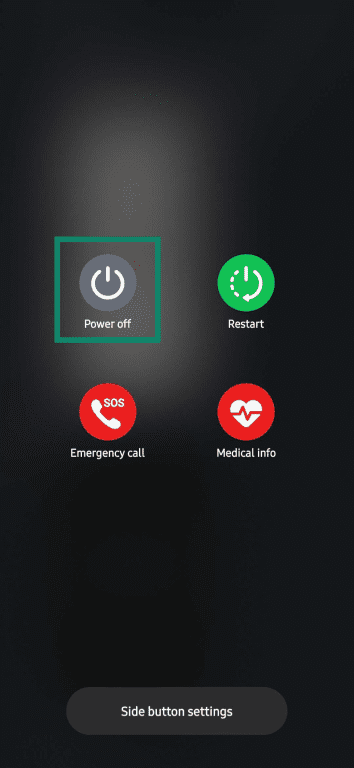
- Tap and hold Power off until the Safe Mode prompt appears.
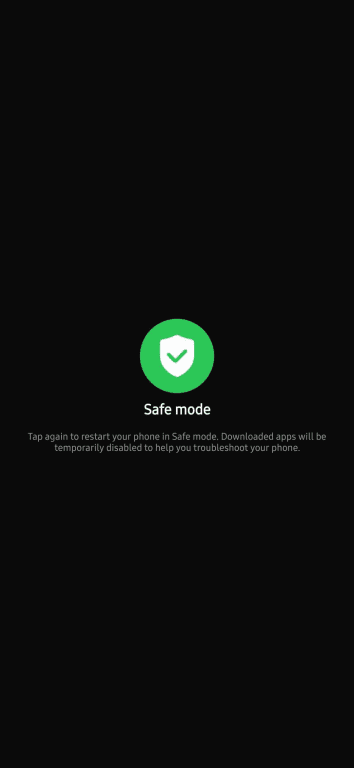
- Tap the Safe mode icon.
Step 3: Remove the fake antivirus
Remove any suspicious programs or apps the fake antivirus may have installed on your device. Look for items that were recently installed that you don’t recognize.
Windows
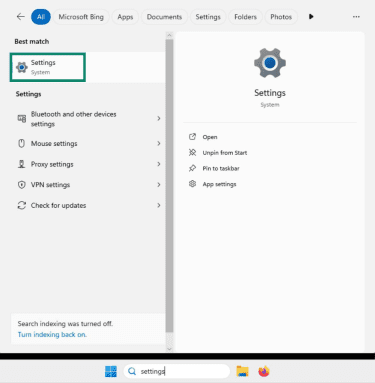
- Open the Start menu and click Settings.
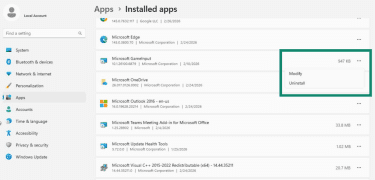
- Go to Apps > Installed apps.
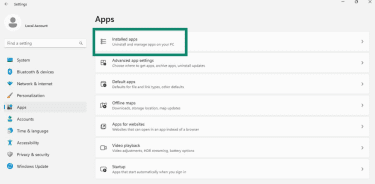
- Scroll through the list and uninstall suspicious programs.
macOS
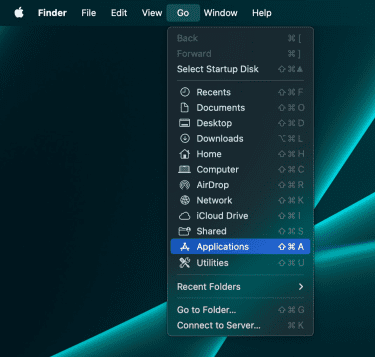
- Click on Go, then Applications.
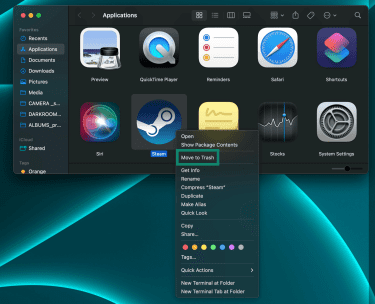
- Press Control on your keyboard, click an app, then select Move to Trash.
Android
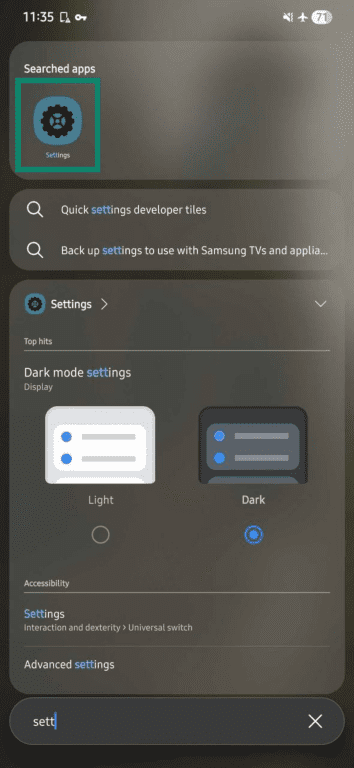
- Open the Settings app.
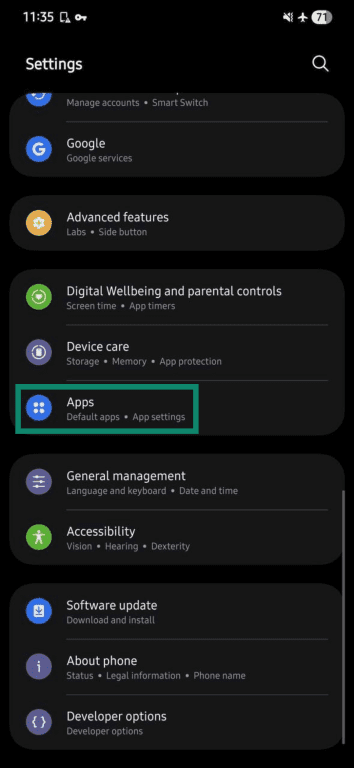
- Tap on Apps.
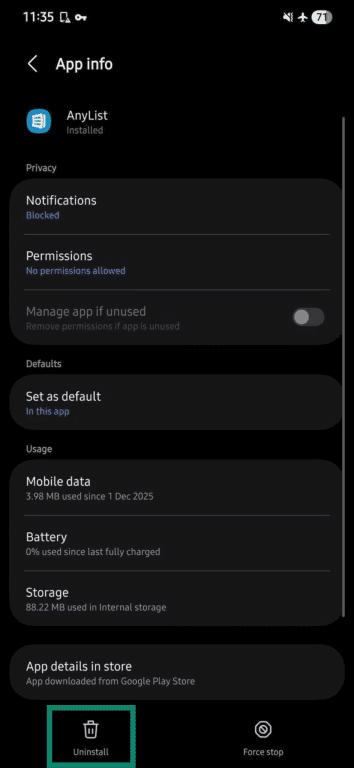
- Choose the apps you deem suspicious.

- Select Uninstall.
Step 4: Run a full scan with a legitimate antivirus
After isolating your device via safe mode, use a legitimate antivirus program to perform a full system scan.
A real antivirus tool can detect and remove a wide variety of malware, including:
- Viruses
- Trojans
- Spyware
- Adware
- Keyloggers
Step 5: Reset your browser settings
Malware can change your default search engine and home page, install unwanted extensions, or redirect you to malicious websites. Resetting your browser removes these changes.
Chrome
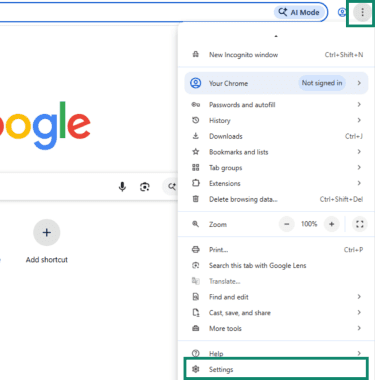
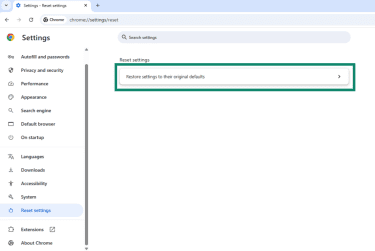
- Open the menu (three vertical dots) in the top right corner of your browser window and click Settings.
- Click Reset Settings > Restore settings to their original defaults.
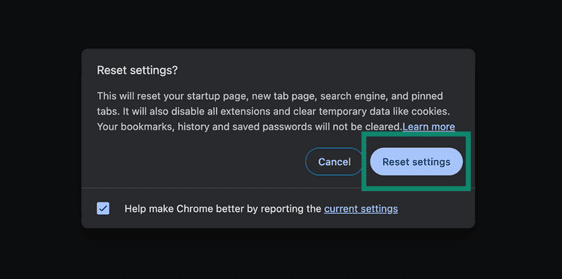
- Click Reset settings to confirm.
Firefox
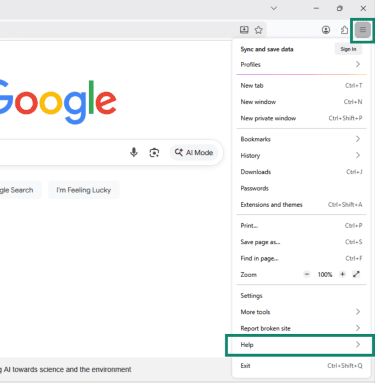
- Open the menu (three horizontal lines) in the top right corner of your browser window, and click Help.
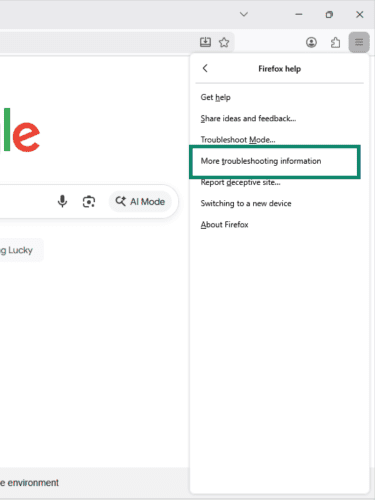
- Click More troubleshooting information.
- Click Refresh Firefox.
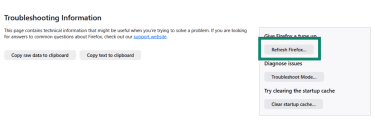
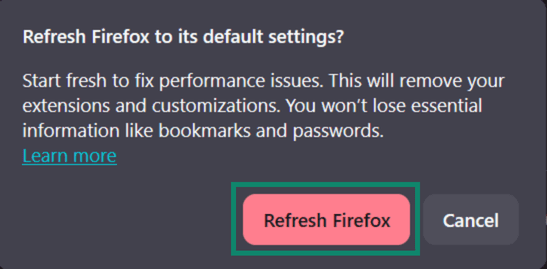
- Click Refresh Firefox again to complete the reset.
Edge
- Open the menu (three horizontal dots) in the top right corner of your browser window, and click Settings.
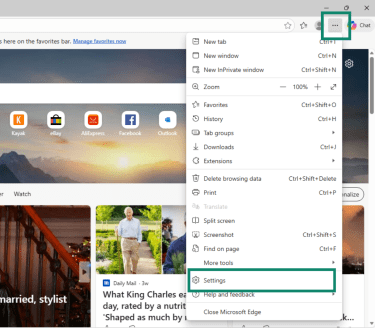
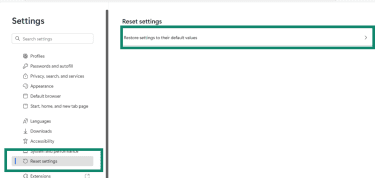
- Click Reset settings > Restore settings to their default values.
Safari
Safari doesn’t have a one-click reset option, so you need to manually restore key settings.
Delete cookies:
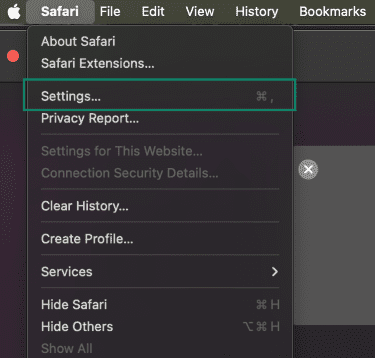
- Click on Safari, then Settings.
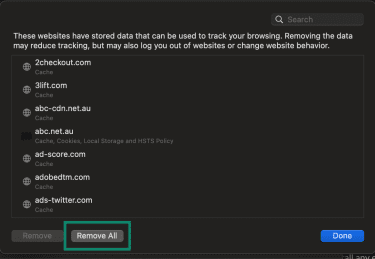
- Select Privacy > Manage Website Data…

- Click Remove All.
Clear cache:
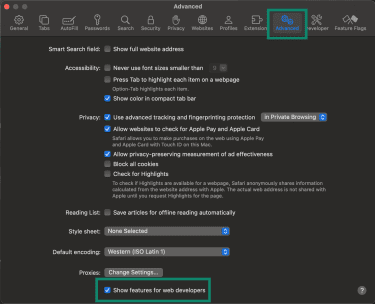
- Click on Safari, then Settings > Advanced > Show features for web developers.
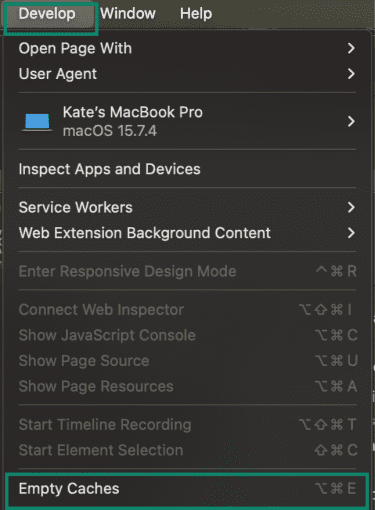
- Click Develop > Empty Caches.
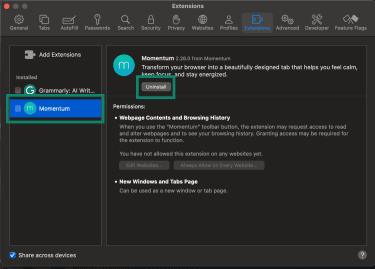
Remove unwanted extensions:
- Go to Safari > Settings > Extensions.
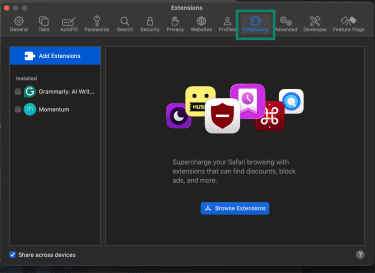
- Uninstall any extensions you don’t recognize.
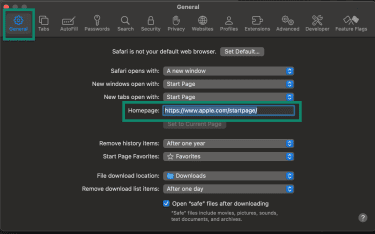
Restore your homepage:
- Go to Safari > Settings > General, then enter your preferred domain next to Homepage.
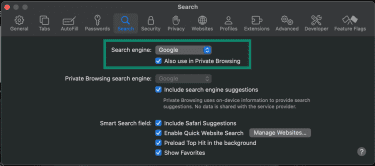
Restore your default search engine:
- Go to Safari > Settings > Search > Search engine.
Step 6: Re-enable security features
On Windows devices, malware may have disabled security features, like Windows Firewall or Windows Defender. Re-enable them to guard your device from future infections.
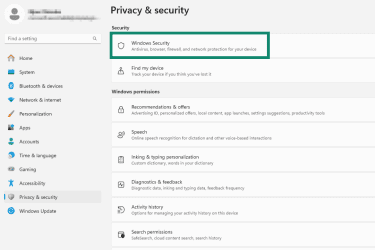
Re-enable Windows Firewall:
- Go to Windows Security.
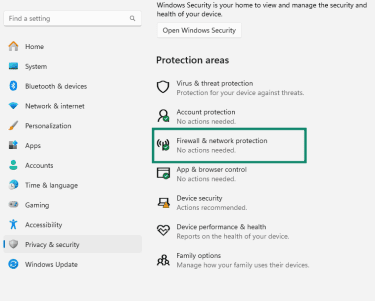
- Click Firewall & network protection.
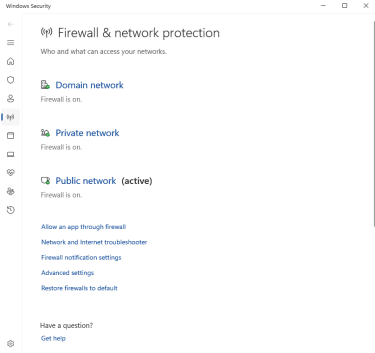
- Make sure the firewall is on for your network.
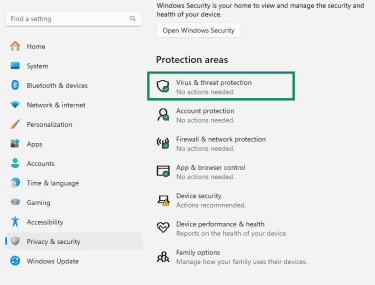
Re-enable Windows Defender:
- Go to Windows Security.
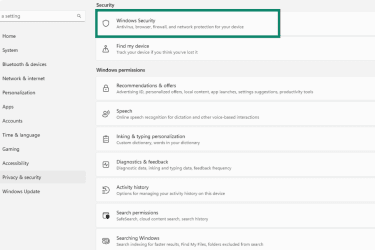
- Click Virus & threat protection.
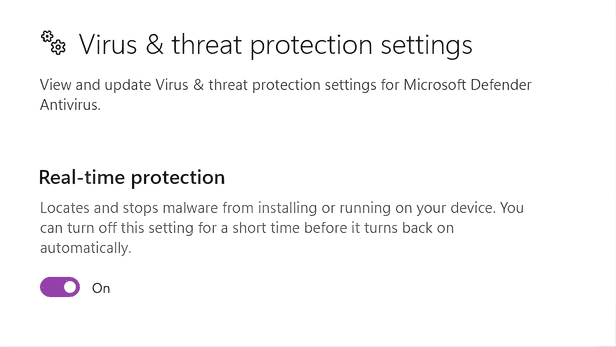
- Enable Real-time protection using the toggle.
Step 7: Secure your personal information
If your device was infected by malware, sensitive data, like login credentials, may have been exposed.
- Change your passwords for email, banking, and other important accounts: Use strong passwords with a mix of uppercase and lowercase letters, numbers, and symbols, and avoid reusing passwords across accounts. A password manager can help generate and store them securely.
- Enable two-factor authentication (2FA) on important accounts: With 2FA enabled, you need a second form of verification (like a code sent to your phone) when logging in. This means an attacker would need to have both your password and your phone to access your account.
- Check your accounts for unusual activity: Keep an eye out for unexpected logins, password reset emails, or unfamiliar transactions.
- Monitor for data breaches: You might want to consider using services like Identity Defender, which alert you if your personal information is exposed on the dark web. Identity Defender is available on select plans in the U.S.
How to prevent fake antivirus infections
You can protect your home computer from fake antiviruses by practicing safe digital habits and using trusted security tools.
Practice good digital hygiene
Taking simple precautions can reduce your risk of being harmed by a fake antivirus.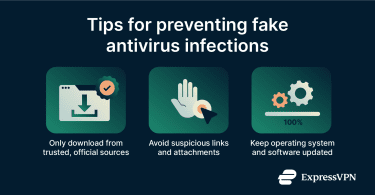
Here are some key tips:
- Download only from trusted sources: Only install programs or browser extensions from official websites or reputable app stores. Check user reviews, ratings, and developer information to ensure the software is legitimate before downloading.
- Be cautious with messages and emails: Don’t click links or open attachments from unknown or unexpected emails, texts, or pop-ups.
- Keep software up to date: Regularly update your operating system, browsers, and applications to patch security vulnerabilities that might be exploited by bad actors to infect your device.
Use trusted antivirus software
Installing a reputable antivirus is an effective way to protect your device from fake antivirus scams.
When choosing an antivirus, consider the following:
- Strong performance: Look for antivirus software that consistently scores well in independent tests from reputable organizations.
- Established reputation: Choose software from well-known companies with a long history of providing reliable security tools and demonstrating responsible practices.
- Transparent privacy policies: Make sure the provider clearly explains what data they collect and how it’s used.
- Regular updates: Ensure the antivirus receives frequent updates, so that it always has the latest virus definitions.
FAQ: Common questions about fake anitiviruses
How can I tell if antivirus software is fake?
You can often identify fake antivirus software by how it presents itself to you. Many of them rely on scare tactics to pressure users into downloading or paying for useless or malicious software. So, if you receive an unsolicited message claiming that your device is at risk, you should be highly skeptical.
Can fake antivirus software damage my computer?
Yes, some fake antiviruses are actually malware and can damage your computer. They may lock your files, alter system settings, or degrade your device’s performance. Some types of malware can also steal sensitive personal information like login credentials, which can lead to identity theft.
What should I do if I clicked on a fake alert?
If you clicked on a fake antivirus alert, disconnect from the internet immediately and avoid interacting with the software or website further. Then, boot your device into Safe Mode and run a scan with a legitimate antivirus to remove any installed malware.
I paid for fake antivirus. Now what?
If you’ve paid for fake antivirus software, contact your bank or payment provider immediately to dispute the charge. After that, focus on securing your device: disconnect from the internet, boot in Safe Mode, and run a legitimate antivirus scan to remove any installed malware.
Which antivirus software is trustworthy?
Trusted antivirus software comes from well-known providers and has a proven track record. Doing research is essential: read independent reviews, check test results to ensure that it reliably detects threats, and investigate the company behind the software.
Should I use a VPN to prevent fake antivirus attacks?
Using a virtual private network (VPN) won’t help prevent fake antivirus infections. VPNs aren’t antivirus software; they’re tools that help protect your privacy by encrypting your internet traffic. That said, some VPNs, like ExpressVPN, have extra features that block malicious ads and sites, which are common sources of fake antivirus attacks.
Take the first step to protect yourself online. Try ExpressVPN risk-free.
Get ExpressVPN